
Accounting
Manage your pharmacy's books, journal entries, ledgers, GST compliance, and financial reports with MediFlux Accounting.
MediFlux Accounting helps you track every rupee that flows through your pharmacy. From daily journal entries to GST returns, from bank reconciliations to profit and loss statements, the module gives you a complete view of your financial health.
What you can do
- View a financial Dashboard with key metrics and summaries.
- Manage Accounts, Journals, and Ledgers for detailed bookkeeping.
- Generate statutory reports such as Trial Balance, Balance Sheet, and P&L Statement.
- Reconcile Bank Accounts and track deposits, withdrawals, and transfers.
- Handle ITC Reversals for GST input credit adjustments.
The Accounting module is disabled by default. You must enable it from Settings before you can access any accounting features.
Enable the Accounting module
Before you can use any accounting features, you need to turn on the module from your store settings.
Open Settings
Go to Settings from the top navigation bar and select the Modules tab.
Enable Accounting
Find the Accounting Module card and click Enable. The module becomes active immediately.
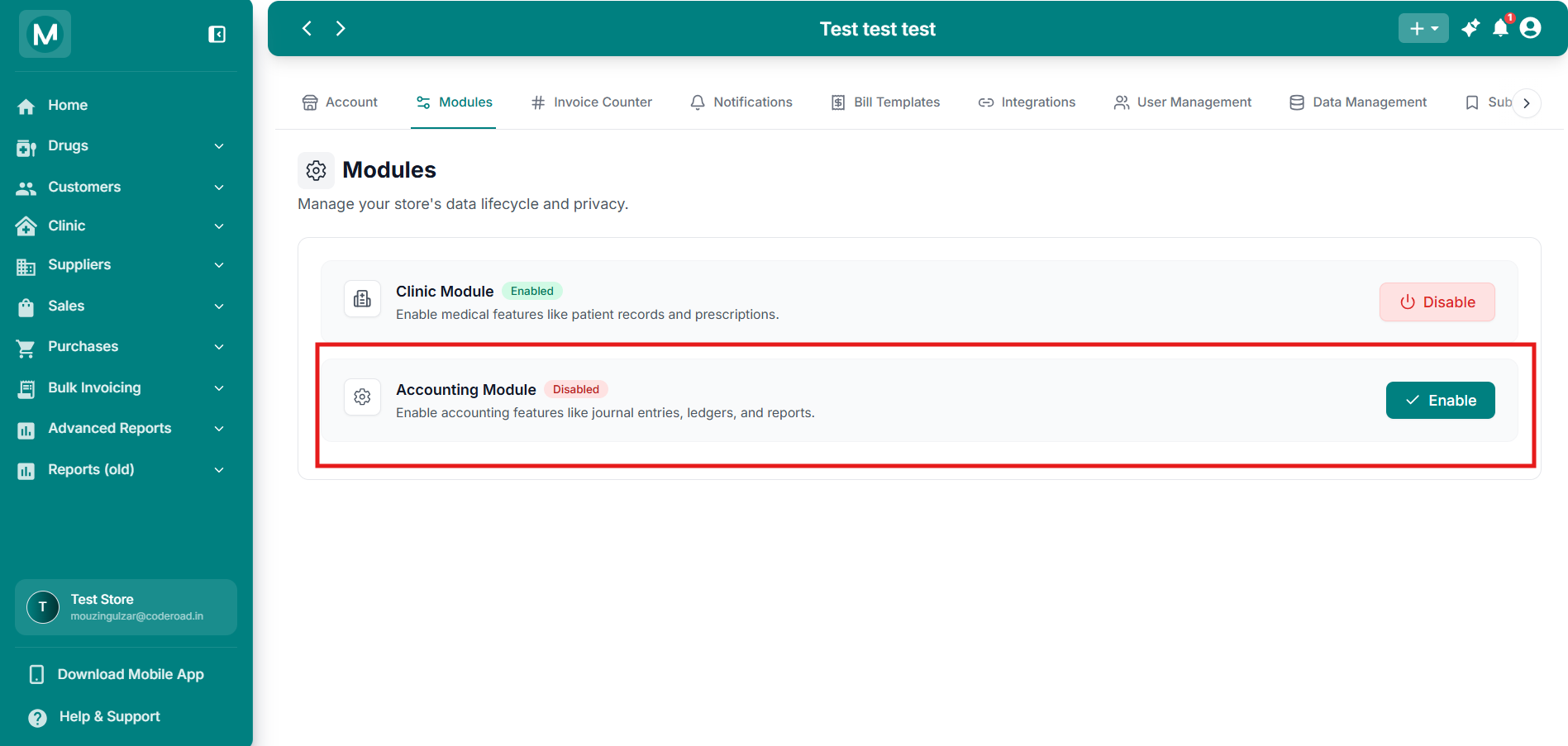
Enable Accounting Module
The Accounting Module appears in the Modules list with an Enable button.
Once enabled, the Accounting section appears in the left sidebar with all its sub-menu items.
Set up Chart of Accounts
The first time you open the Accounting section, MediFlux prompts you to initialize your Chart of Accounts. This step creates the default account heads required for double-entry bookkeeping.
Open Accounting
Click Accounting in the left sidebar. The Setup Chart of Accounts screen opens.
Review default accounts
MediFlux pre-selects essential account groups such as Cash & Bank, Accounts Receivable, and Accounts Payable. You can also add custom accounts like Owner Capital under Add New Accounts.
Initialize
Click the Initialize button to create the accounts.
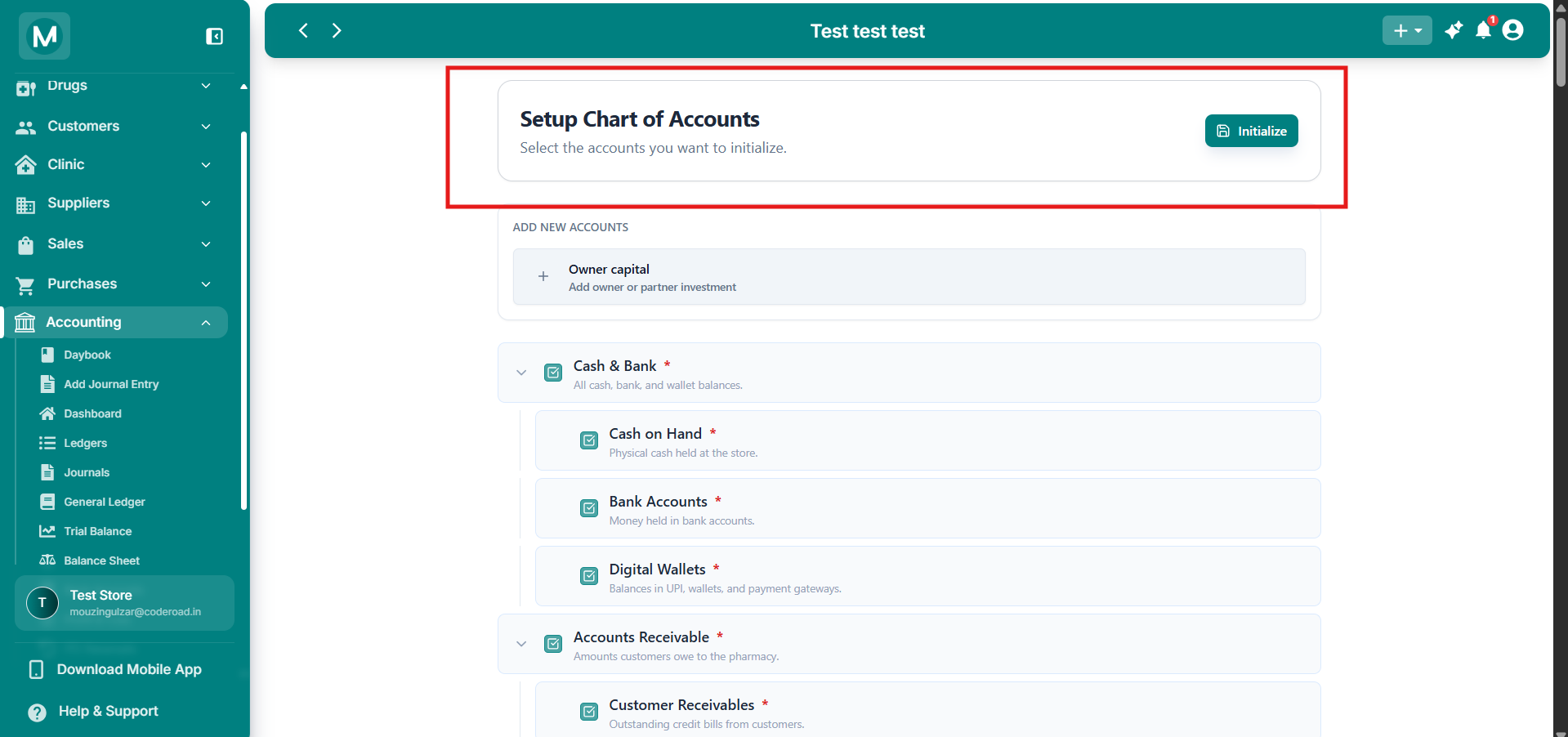
Setup Chart of Accounts
Review pre-selected account groups and add custom accounts before initializing.
Set up system balances
After initialization, a dialog opens to capture your opening balances. MediFlux automatically pulls values from your existing inventory and supplier data, so you only need to fill in a few fields.
Review Assets
The Assets section shows pre-filled values:
- Drug Inventory value: pulled from your current stock
- Non Drug Inventory value: pulled from non-drug stock
- Accounts receivable: outstanding customer dues
Enter your Cash in Hand amount. This is the only physical cash field you need to fill manually.
Add Bank Accounts
Click + Add bank to register your bank accounts. For each account you must provide:
- Account Name
- Account Number
- Bank Name
- IFSC Code
- Branch
- Account Type: choose from
Savings,Current,FD, orRecurring Deposit
Check Set as default bank account if this account should be used as the default for transactions.
Review Liabilities
The Liabilities section shows:
- Accounts payable: outstanding supplier dues
- GST Output CGST, GST Output SGST, GST Output IGST: tax liabilities
Review Tax Credits
The Tax Credits section displays GST Input CGST, GST Input SGST, and GST Input IGST values that you can claim back.
Add Owner Capital
Under Owners & Partners, click Add owner and enter the amount invested by each owner or partner. MediFlux creates a capital account for each owner automatically.
Review Retained Earnings
Retained earnings is calculated automatically to balance your books. It represents profits or losses carried forward from previous years. You do not need to edit this value.
Save and Continue
Click Save & Continue to complete the setup.
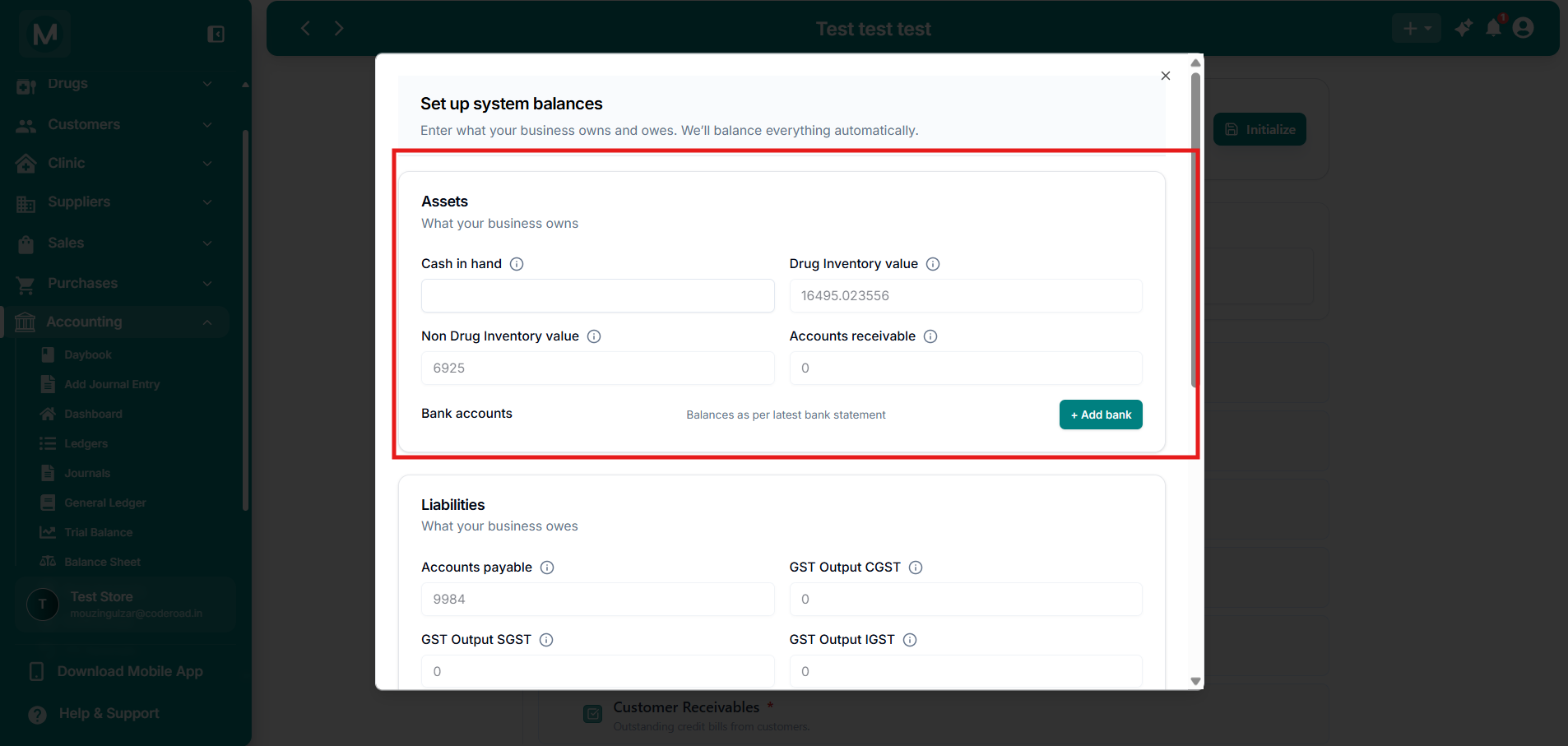
System Balances: Assets
Assets section with auto-filled inventory values and manual Cash in Hand entry.
Add Owners and partners
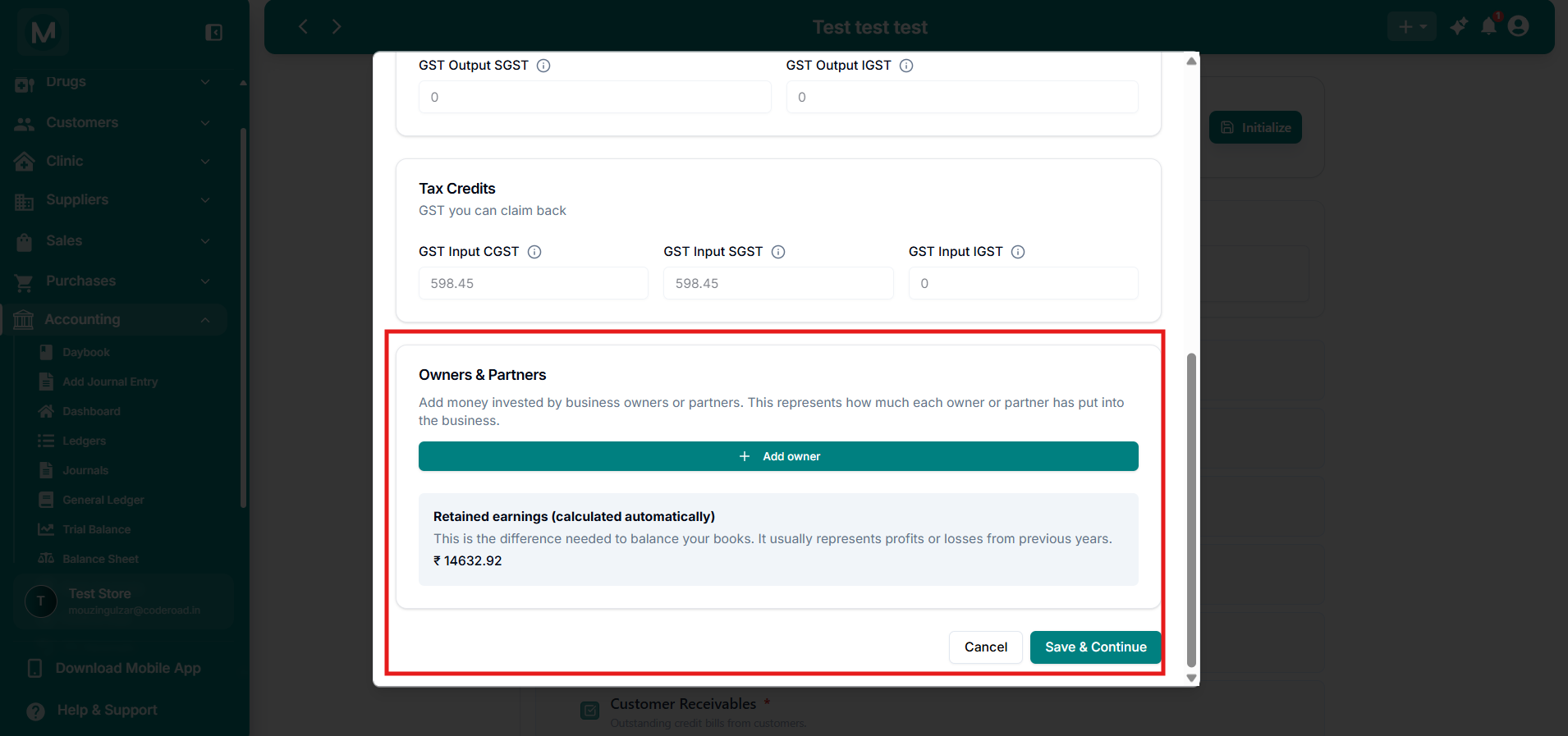
Owners and Partners
Owner capital entry and automatically calculated retained earnings.
Do not skip the opening balance setup
If you skip or rush through the opening balance setup, your Trial Balance and Balance Sheet will not reconcile with your actual business position. Always verify the auto-filled inventory and GST values against your physical records.
Navigating the Accounting section
After setup, the Accounting sidebar gives you access to every financial tool in MediFlux.
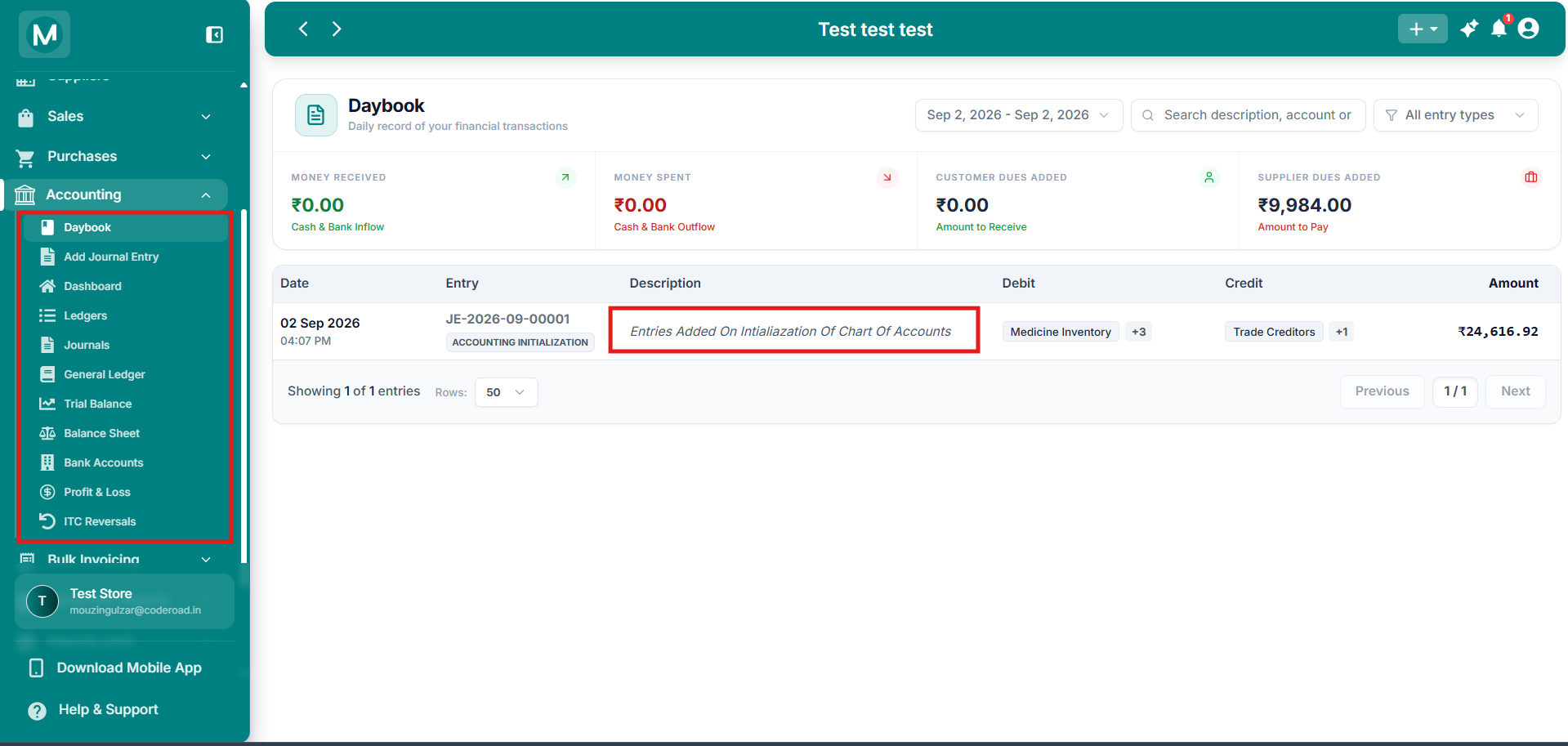
Accounting Sidebar Menu
Full Accounting menu with Daybook, Journal Entry, Dashboard, Accounts, Journals, Ledger, Trial Balance, Balance Sheet, Bank Accounts, P&L Statement, and ITC Reversals.
Common mistakes
Entering the wrong Cash in Hand amount
Count your physical cash carefully before typing the amount. An error here permanently affects your cash ledger and makes every future cash report incorrect.
Skipping or rushing the opening balance setup
If you skip verification of auto-filled inventory, GST, and payable values, your Trial Balance and Balance Sheet will not match your actual business position. Always cross-check the numbers against your physical records before clicking Save & Continue.