
Prescriptions
Create prescriptions as a doctor and dispense them directly into a sale from the pharmacy side.
The Prescriptions page connects the doctor’s prescribing workflow with the pharmacy’s dispensing workflow. A doctor creates a prescription. It then appears on the pharmacy side under Clinic → Prescriptions. The pharmacist clicks Dispense and is taken straight to the Add Sale page with the prescribed medicines already loaded.
What You Can Do
- Create new prescriptions with full clinical details, medicines, frequency, duration, and vitals
- View a complete history of every prescription you have issued
- Search prescriptions by patient name, medicine, or notes
- Dispense a prescription directly into a sale with medicines pre-filled
- Keep a clear record linking the patient, doctor, and medicines prescribed
Doctor Side: My Prescriptions
Navigate to Clinic → My Prescriptions.
This is the page a doctor uses to review past prescriptions and create new ones.
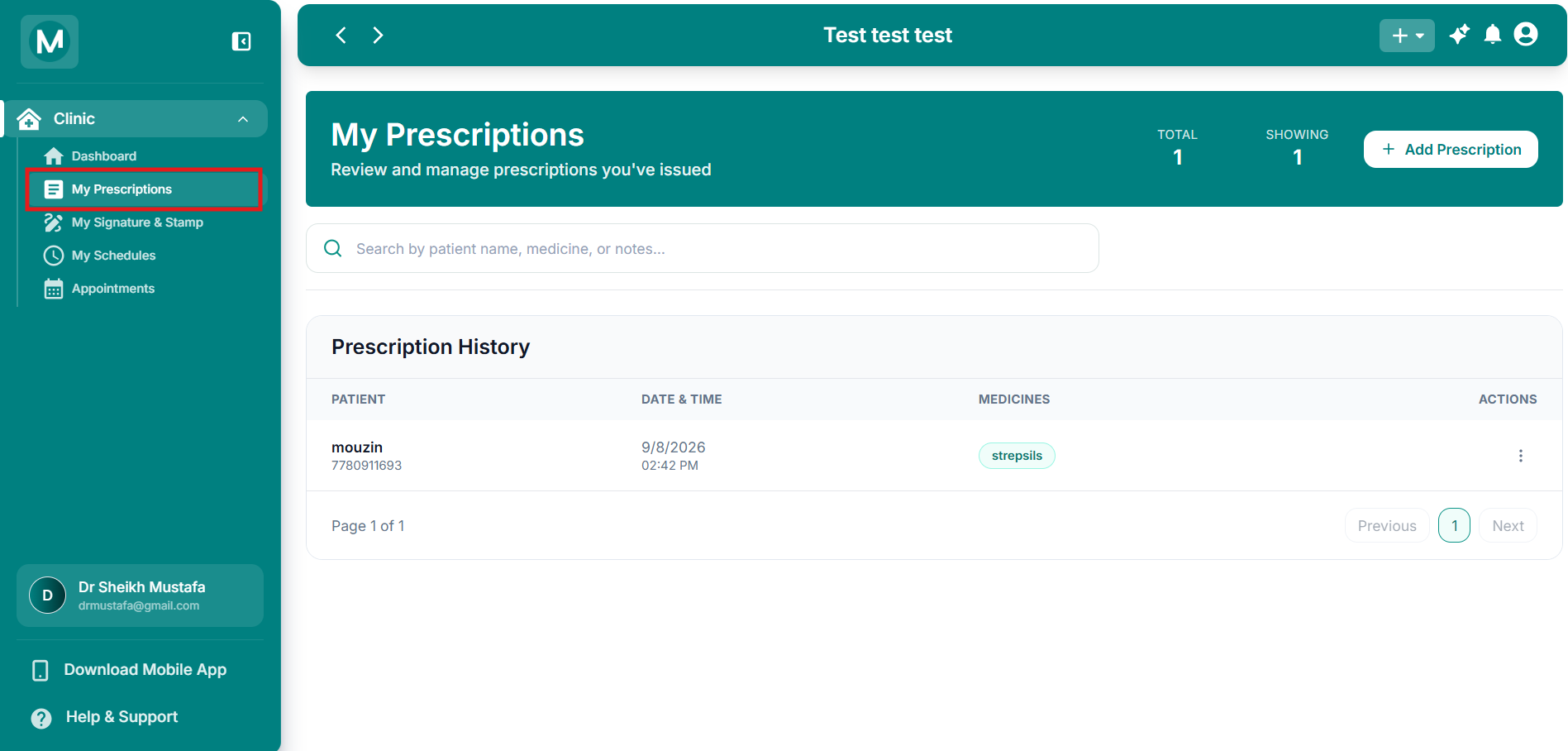
My Prescriptions
Prescription History table with search, total count, and Add Prescription button.
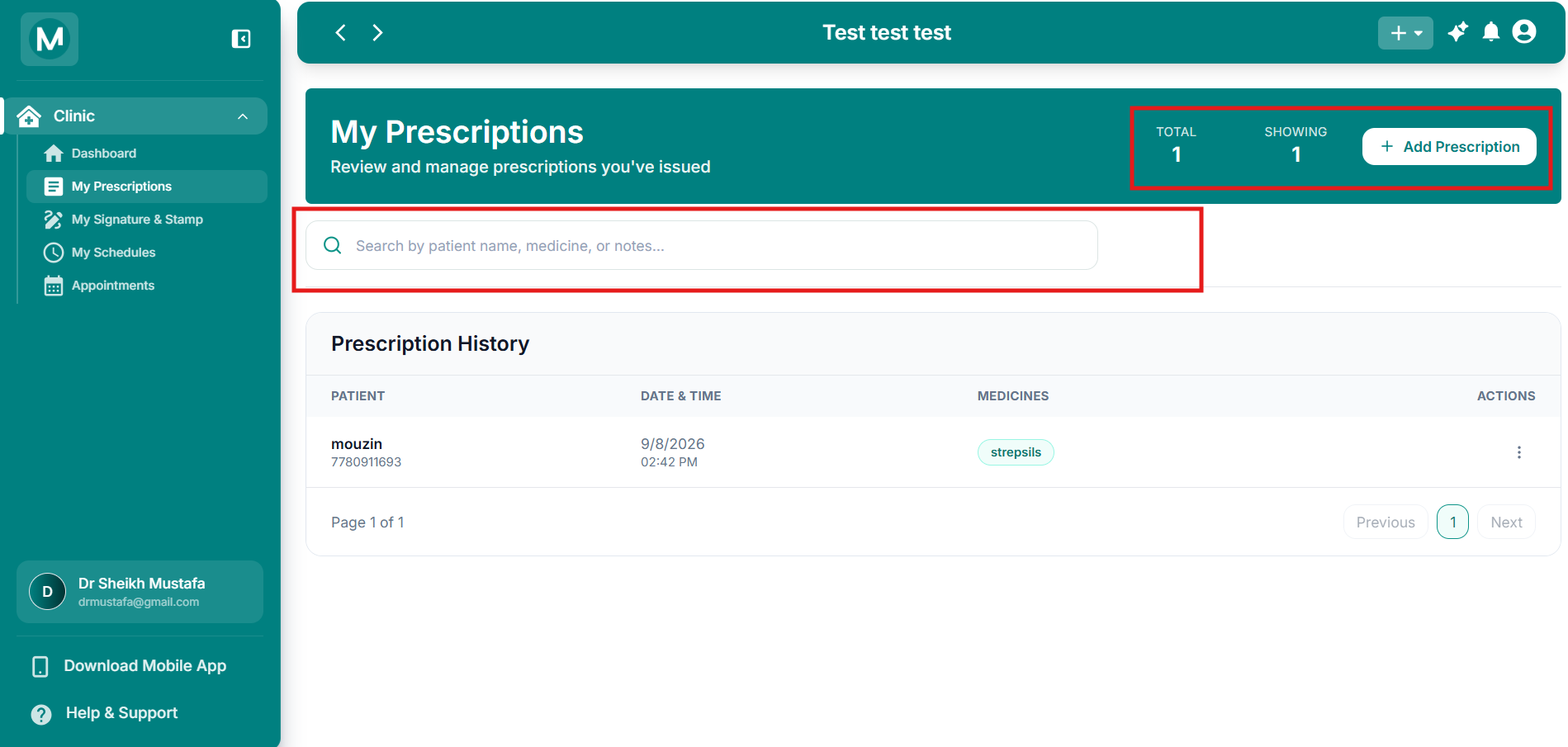
Page overview
Page overview
TOTAL, SHOWING counts, search bar, and Add Prescription button.
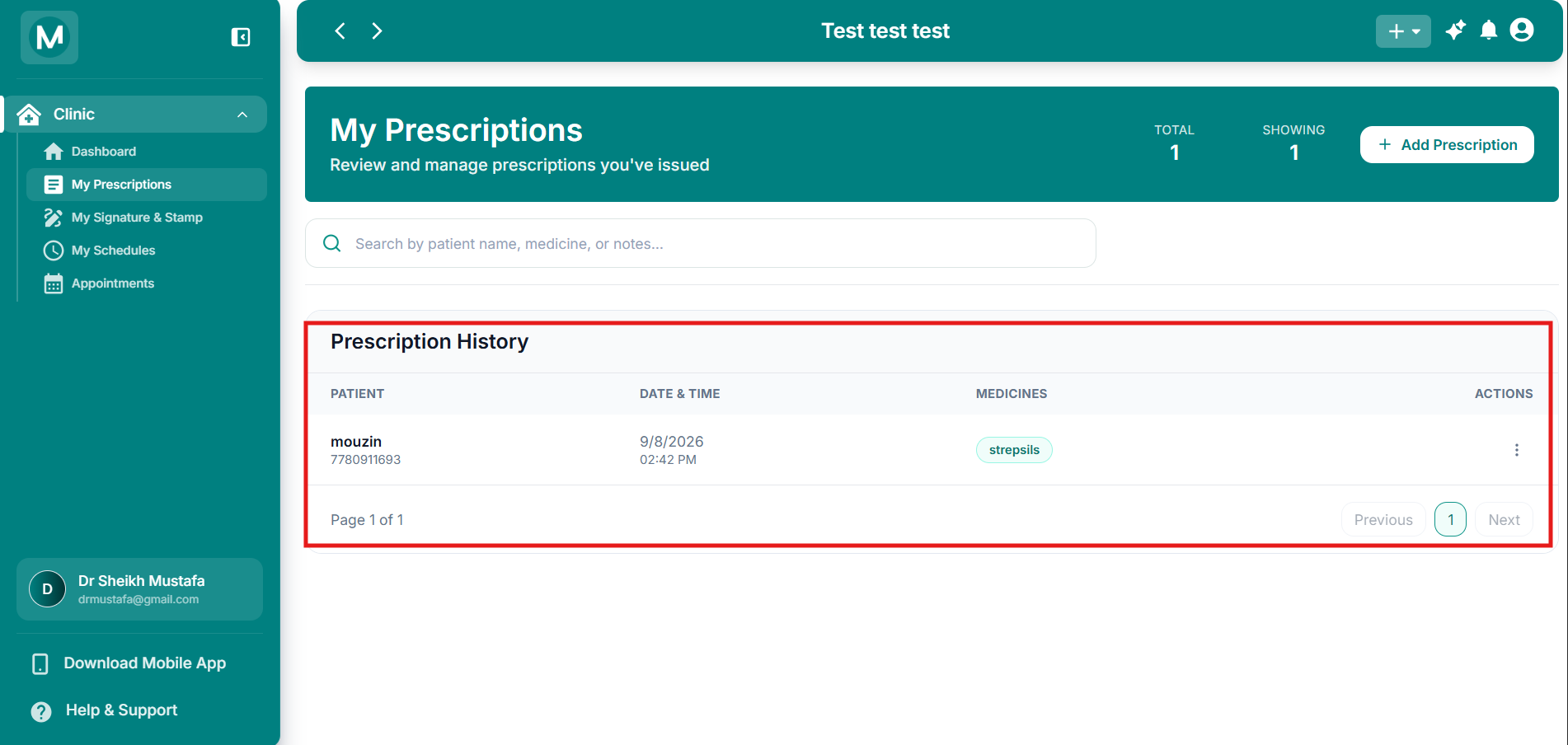
Prescription History table
Prescription History table
Columns for Patient, Date & Time, Medicines, and Actions.
Creating A Prescription
Open the create flow
On the My Prescriptions page, click + Add Prescription.
Select or add a patient
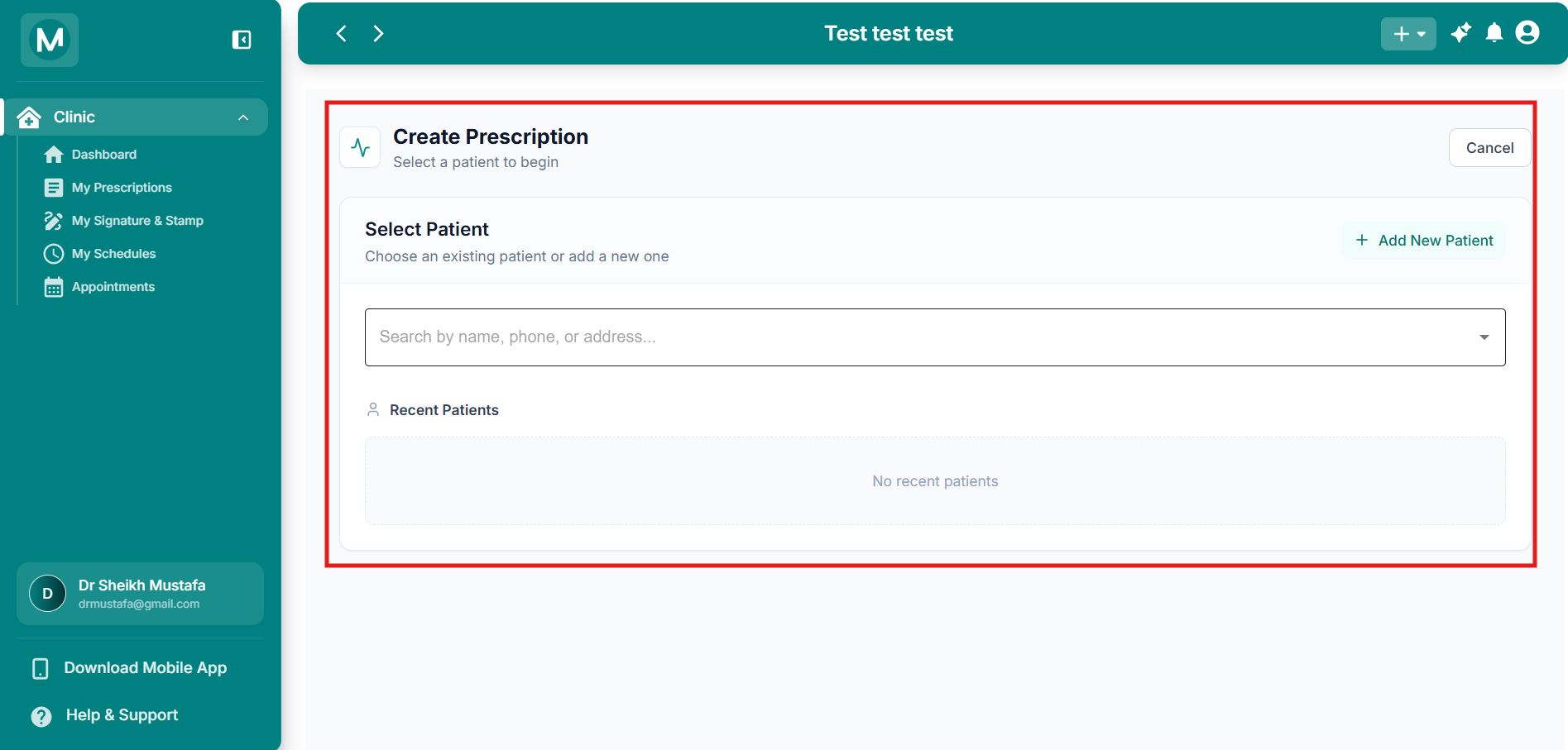
The Create Prescription dialog opens.
Select Patient
Search an existing patient or add a new one.
- Search by name, phone, or address to select an existing patient.
- Click + Add New Patient if the patient is not yet in the system.
- Recent patients appear below the search field when available.
Fill the prescription form
After selecting the patient, the full prescription form opens.
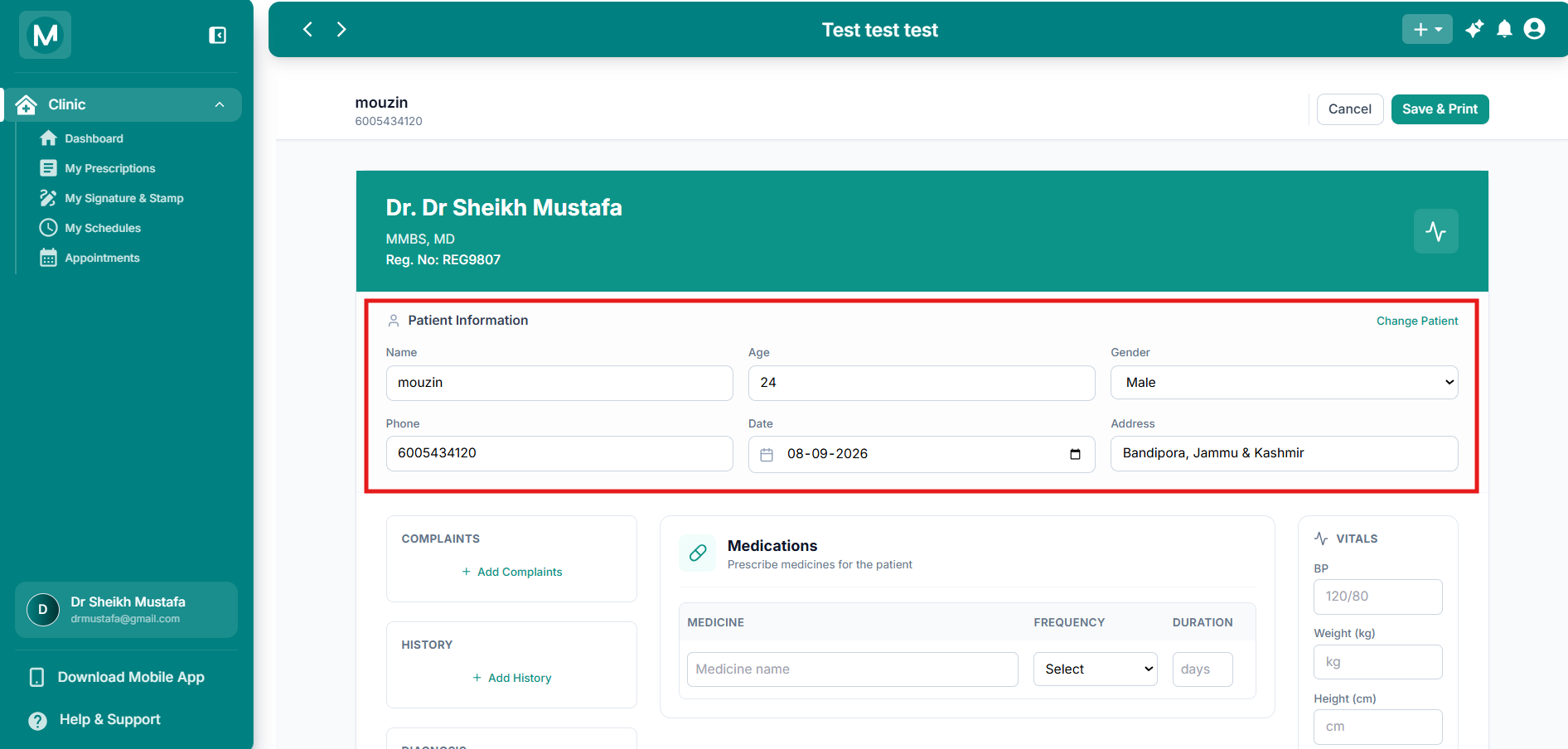
Create Prescription form
Patient information, clinical sections, medications, vitals, follow-up, and remarks.
Patient Information
Use Change Patient at any time to switch to a different patient.
Clinical sections
Medications
Add each medicine with:
- MEDICINE name
- FREQUENCY (dropdown)
- DURATION (in days)
Frequency options:
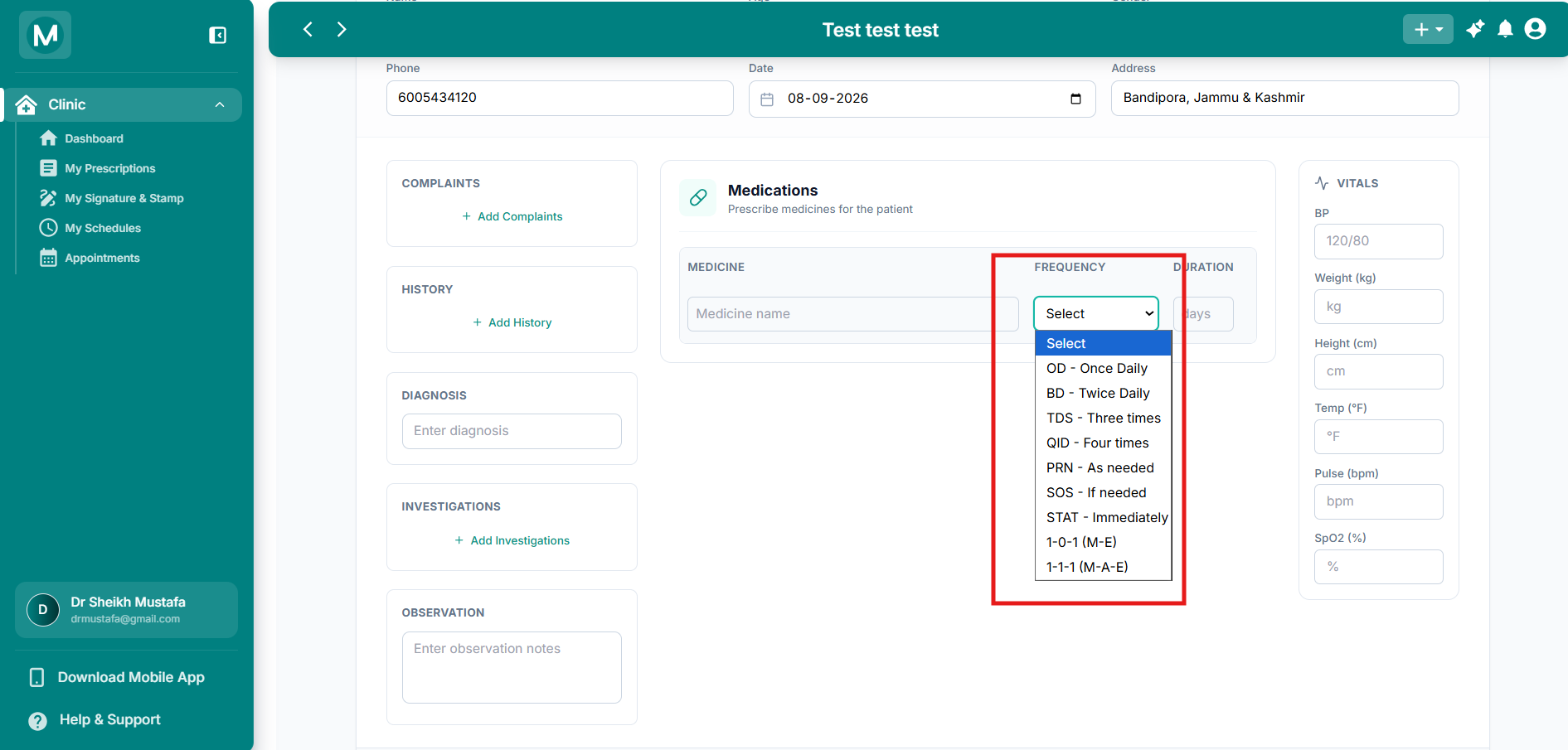
Frequency dropdown
Common dosing frequencies available while adding medicines.
Vitals
Follow-up and Remarks
- Set a Follow-up Date or use the quick buttons: 1 Day, 3 Days, 1 Week, 2 Weeks
- Add any additional notes or instructions in Remarks
Save the prescription
Click Save & Print at the top right.
The prescription is saved, appears in the doctor’s Prescription History, and becomes available on the pharmacy side for dispensing.
Pharmacy Side: Prescriptions List
Navigate to Clinic → Prescriptions.
This is the view used by the store or pharmacist.
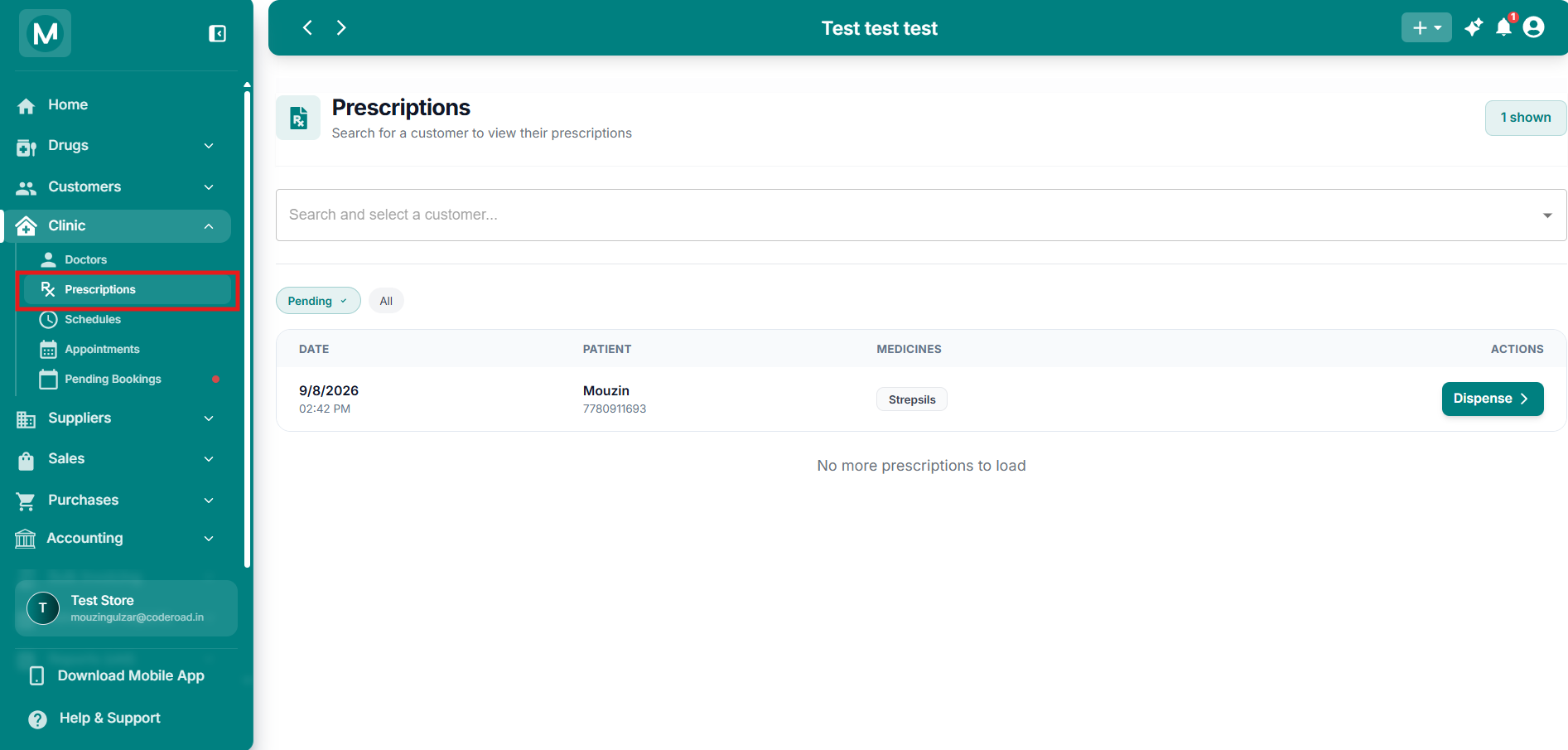
Pharmacy Prescriptions
Search, Pending/All filters, and Dispense action.
What you see
- Search and select a customer to view their prescriptions
- Filter chips: Pending and All
- Table of prescriptions waiting to be dispensed
Prescriptions table
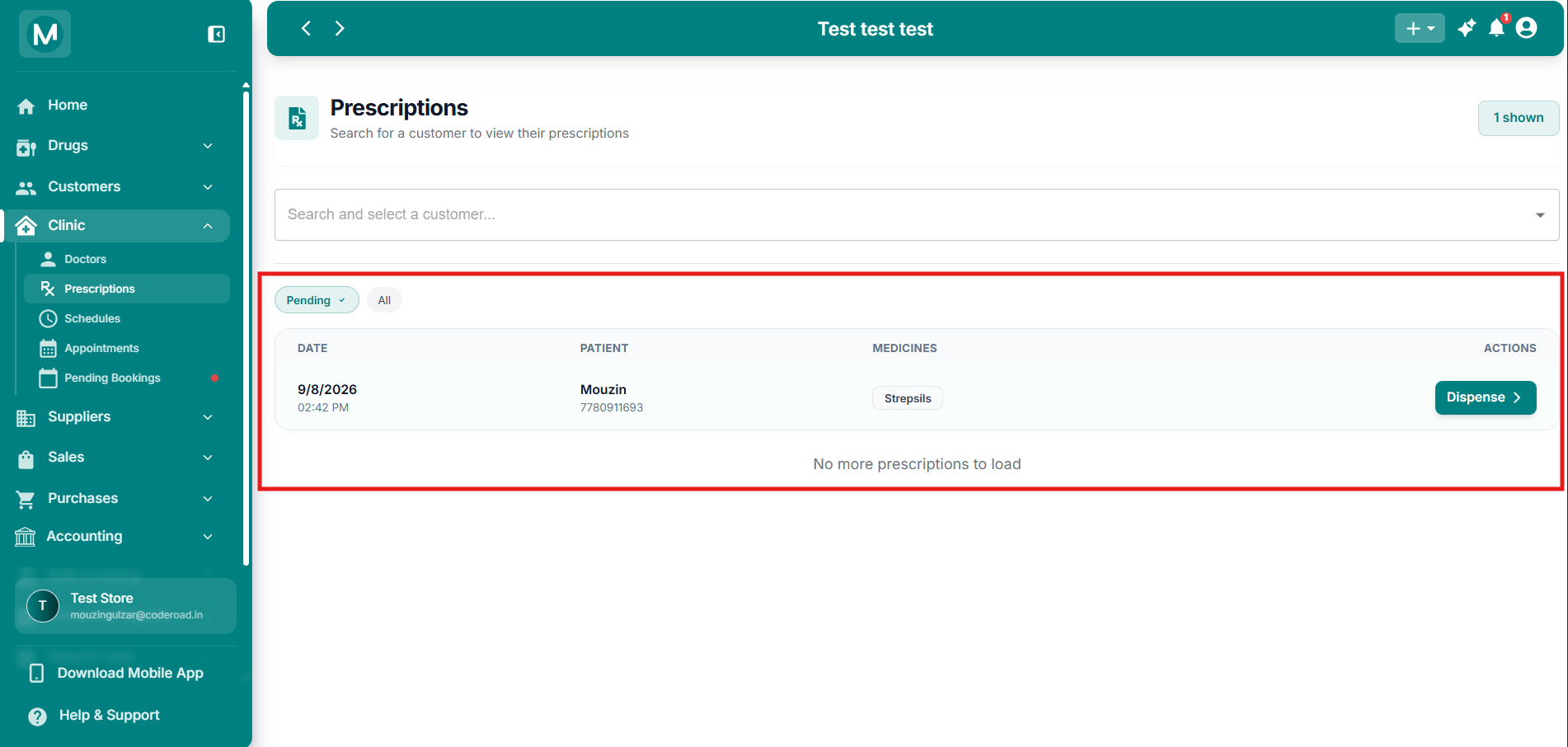
Prescriptions table
Columns for Date, Patient, Medicines, and the Dispense action.
Dispensing A Prescription
Click Dispense on any pending prescription.
You are taken directly to the Add Sale page with the prescription details already loaded.
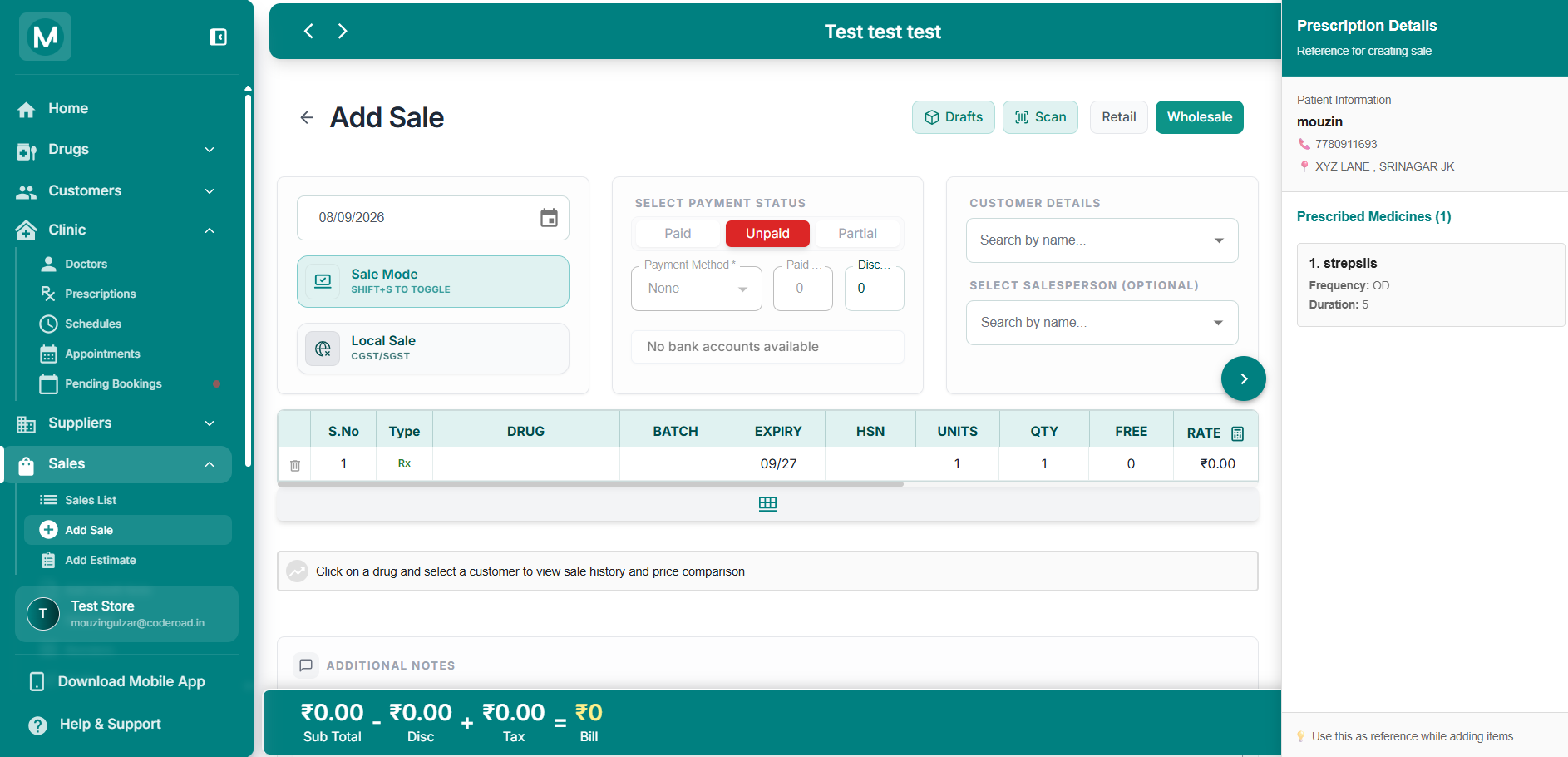
Add Sale opened from Dispense
Prescription Details panel on the right and Rx items pre-filled in the drug table.
What is pre-filled
Right panel – Prescription Details
- Patient name, phone, and address
- List of prescribed medicines with Frequency and Duration
Drug table
- Each prescribed medicine is added as a row
- Type is set to
Rx - You can adjust quantity, rate, discount, and other sale fields as needed
Complete the sale as you normally would: select payment status, review the bill summary, and save.
The Prescription Details panel stays visible on the right so you can use it as a live reference while building the bill.
Full Flow Summary
- Doctor opens Clinic → My Prescriptions
- Clicks + Add Prescription
- Selects an existing patient or adds a new one
- Fills clinical details, medicines, frequency, duration, vitals, and follow-up
- Clicks Save & Print
- Pharmacy opens Clinic → Prescriptions
- Finds the prescription under Pending
- Clicks Dispense
- Completes the sale on the Add Sale page with medicines already loaded
Common Mistakes To Avoid
Missing frequency or duration
Always set Frequency and DURATION for every medicine. These details appear on the printed prescription and in the pharmacy view.
Dispensing without checking stock
Use the pre-filled medicines as a guide, then confirm actual batch, expiry, and available quantity before finalising the sale.