
Add Journal Entry
Create a manual journal entry with debit and credit lines that follow the double-entry rule.
The Add Journal Entry page lets you record a manual financial transaction. Use it for adjustments, transfers, owner drawings, expense allocations, or any other entry that is not automatically generated by sales, purchases, or payments.
Navigate here from the sidebar: Accounting → Add Journal Entry.
You can also reach this form by clicking + Add Journal on the Journals page.
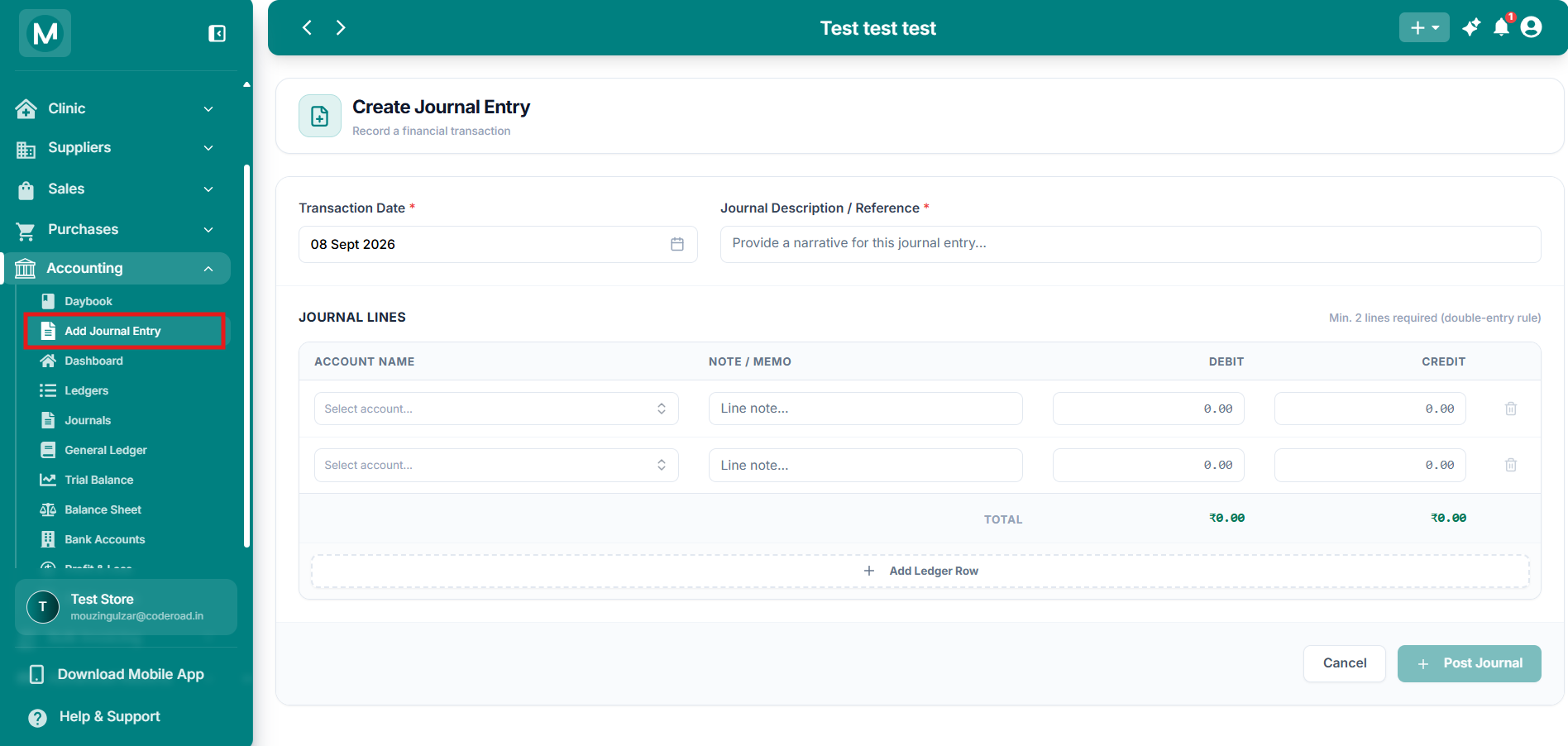
Create Journal Entry
Full form with transaction date, description, journal lines, and Post Journal button.
Page overview
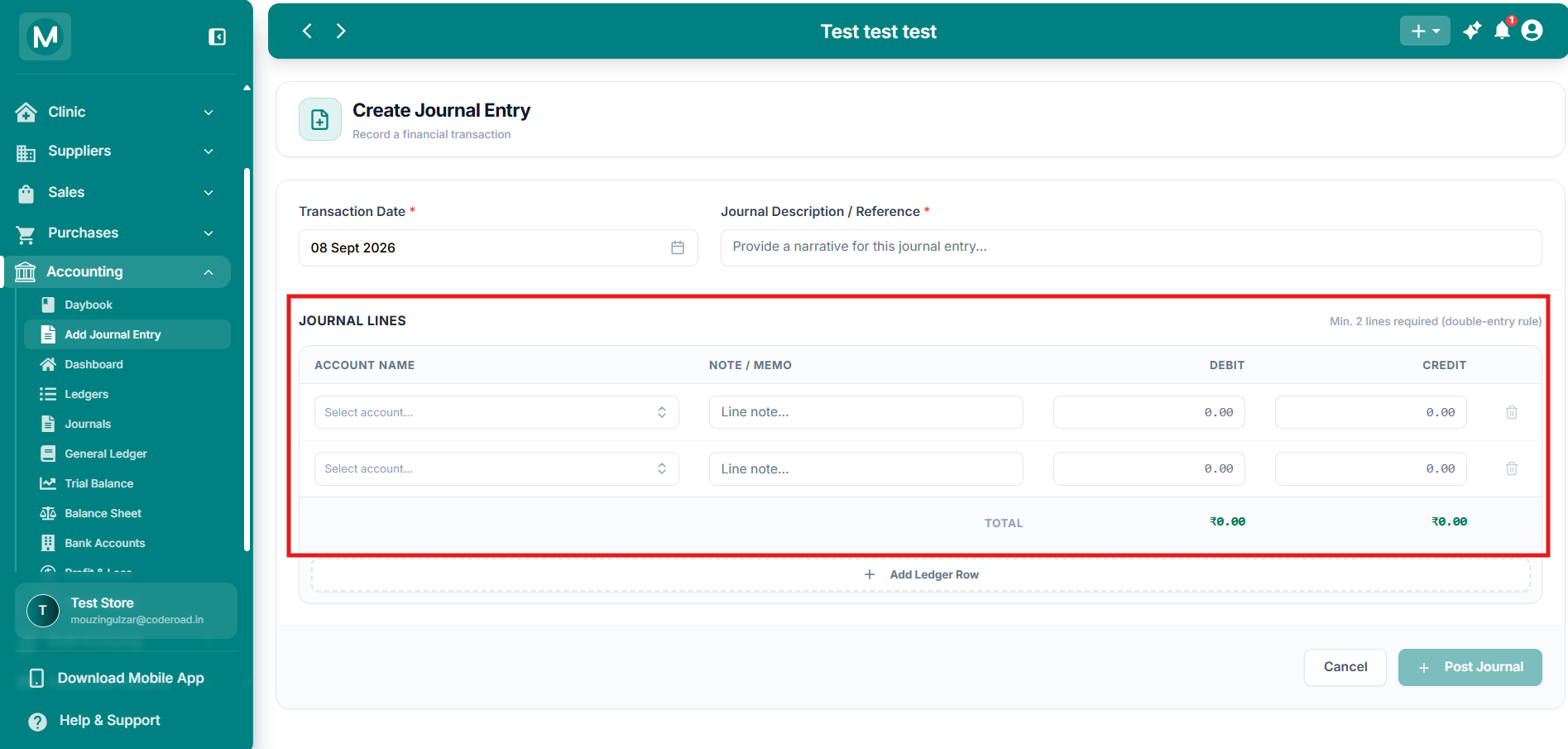
Page Overview
Transaction Date and Journal Description etc.
Header fields
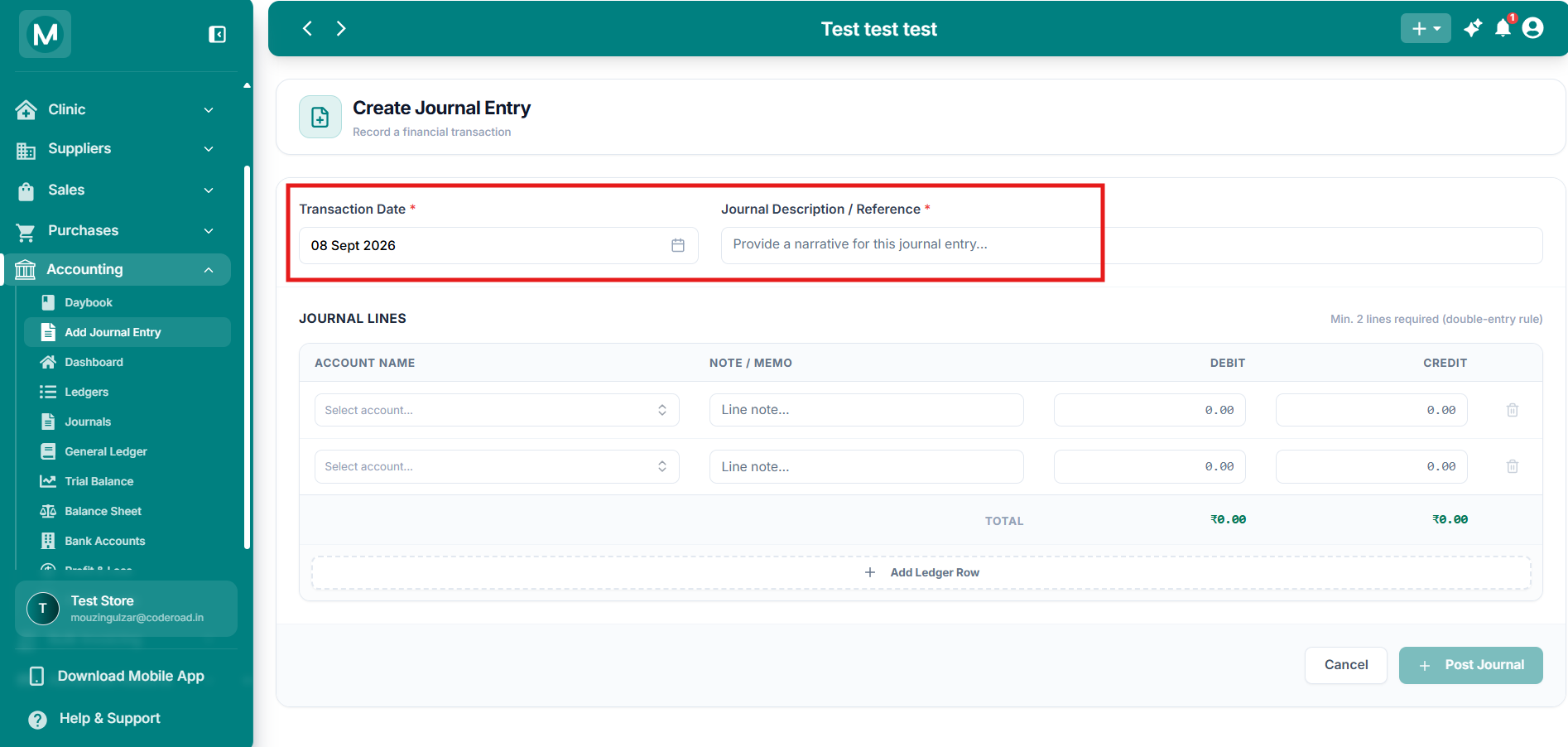
Header fields
Transaction Date and Journal Description / Reference fields.
Journal lines
Every journal entry must follow the double-entry rule: total debits must equal total credits. The form enforces a minimum of two lines.
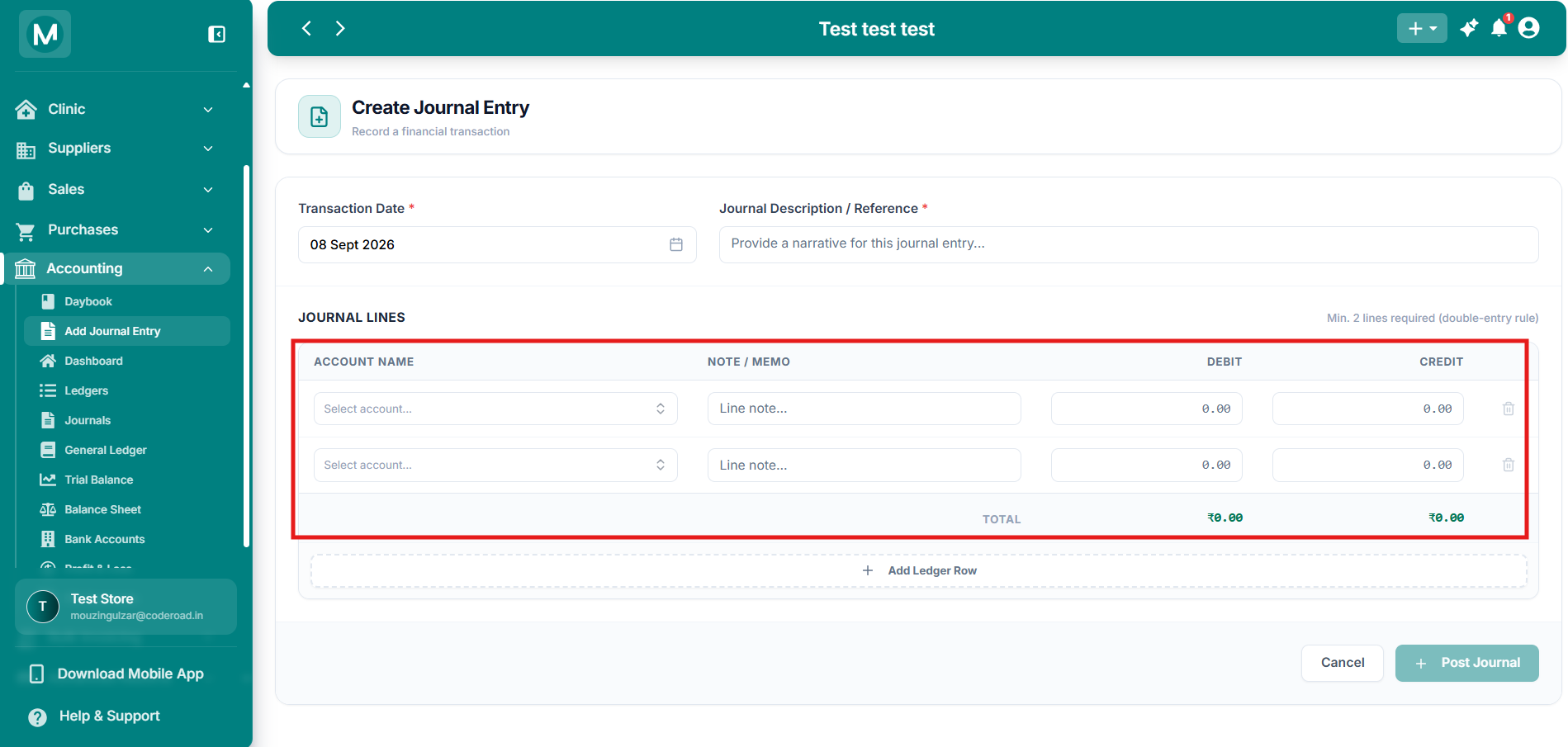
Journal lines table
Account Name, Note / Memo, Debit, Credit columns and delete icon.
Adding more lines
Click + Add Ledger Row at the bottom of the table to insert an additional debit or credit line.
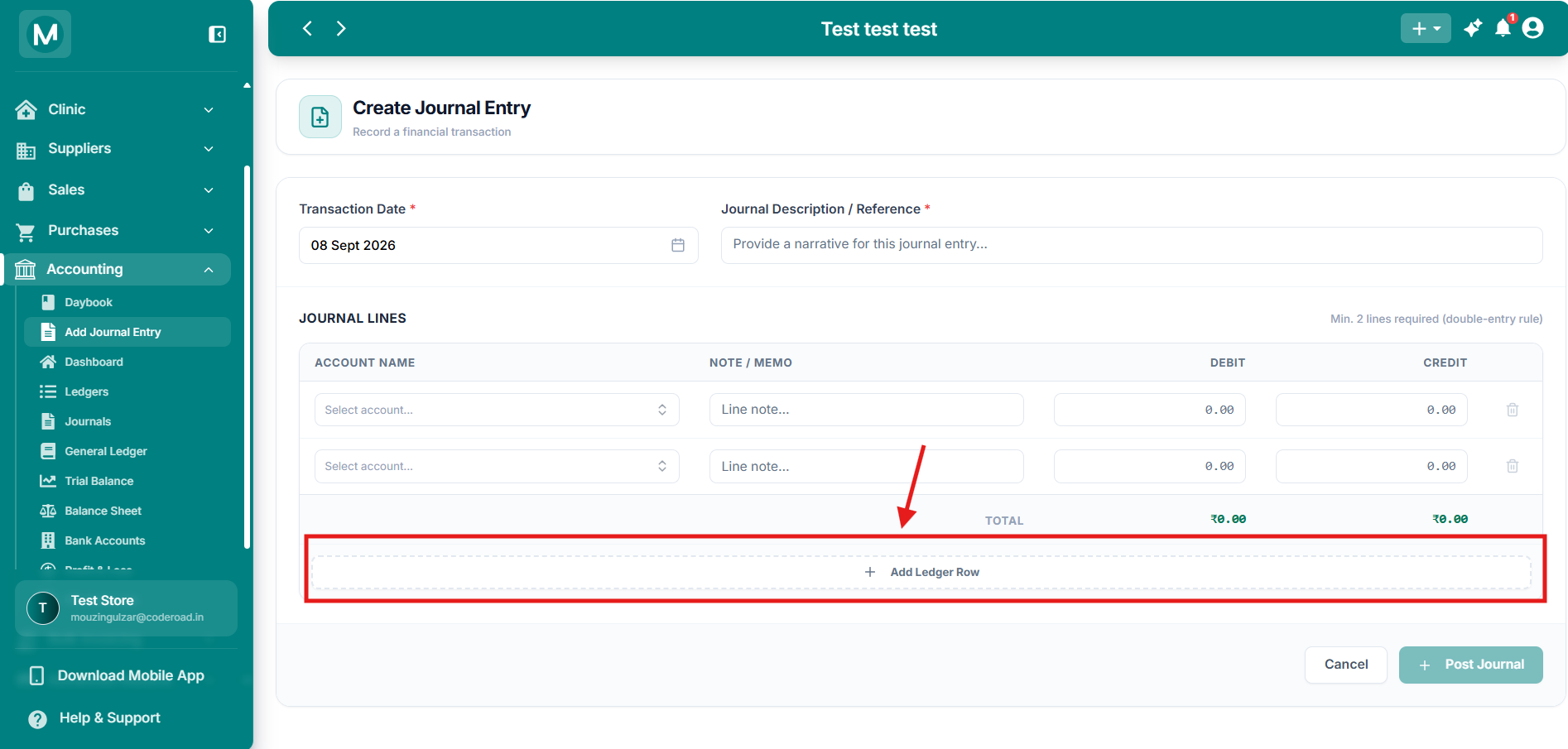
Add Ledger Row
Button to insert an additional debit or credit line.
Totals
The TOTAL row at the bottom of the table shows the running sum of all Debit amounts and all Credit amounts. Both totals must be equal before you can post the entry.
The form shows the message Min. 2 lines required (double-entry rule) as a reminder that every journal needs at least one debit and one credit.
Posting the entry
- Fill in Transaction Date and Journal Description / Reference.
- Select an account and enter either a Debit or Credit amount on the first line.
- Select a different account and enter the balancing amount on the second line.
- Add more lines if the entry involves more than two accounts.
- Confirm that the Debit and Credit totals are equal.
- Click + Post Journal.
Once posted, the entry appears in:
- Journals with type MANUAL and status POSTED
- Daybook under the selected date
- The individual Ledger of every account used in the entry
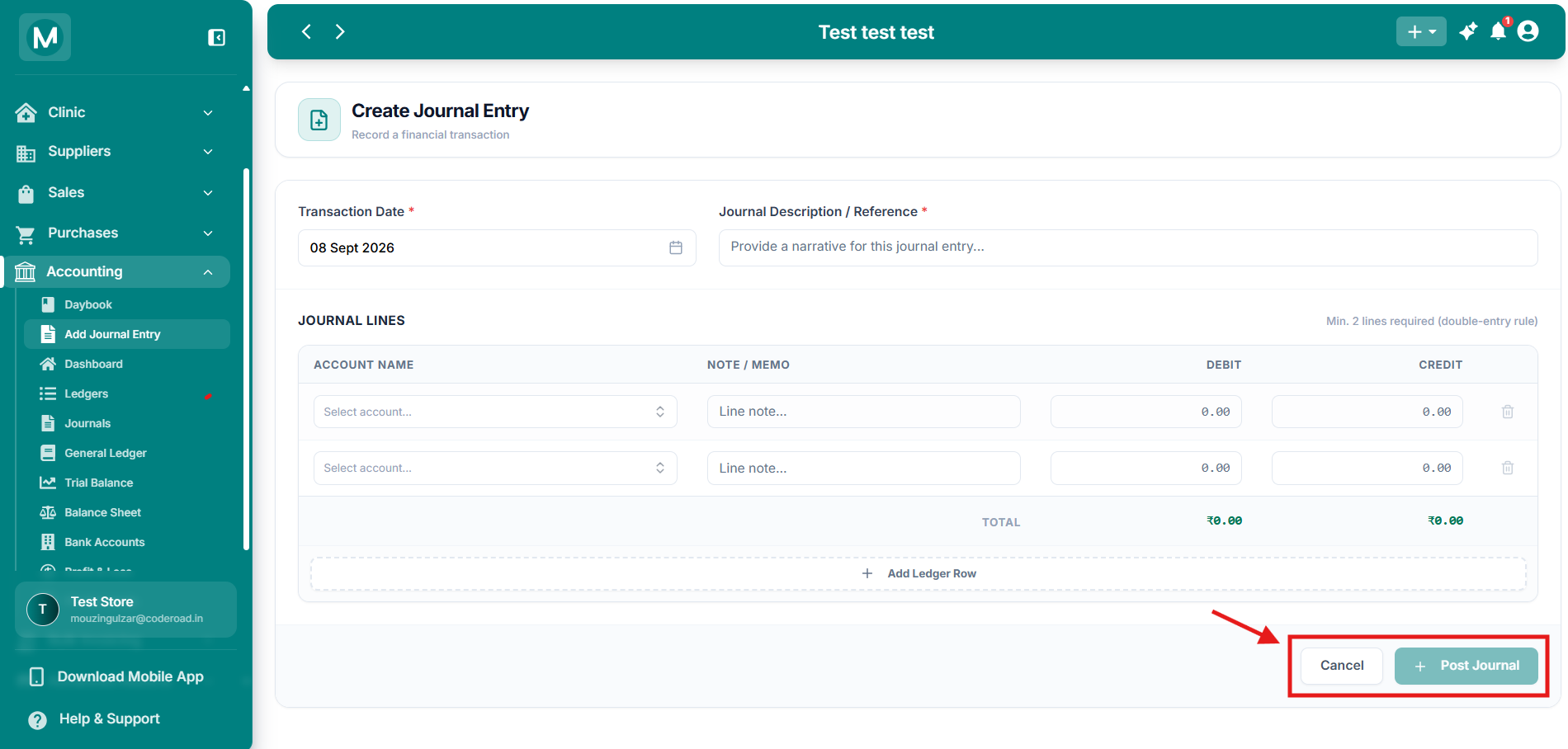
Cancel and Post Journal buttons
Cancel discards the entry. Post Journal saves and posts it to the ledgers.
Example
A simple transfer of ₹5,000 from Cash to a Bank account:
Totals: Debit ₹5,000.00 = Credit ₹5,000.00
Common mistakes
Debits do not equal credits
The form will not allow you to post an unbalanced entry. Always check the TOTAL row before clicking Post Journal.
Leaving the description blank
Journal Description / Reference is required. A clear narrative makes the entry easy to understand later in the Daybook and Journals list.