
Warehouse
Manage stock across your Main Store and warehouses, filter inventory by location, transfer medicines between locations, and view warehouse-wise stock details.
The Warehouse Module in MediFlux helps you manage inventory across your Main Store and additional warehouses.
You can view stock available at each location, move medicines between the Main Store and warehouses, and check where a particular medicine is stocked.
Warehouse inventory is managed through the Drug List, so you can work with your existing medicine records without maintaining a separate drug directory for each location.
Enabling the Warehouse Module
The Main Store is available by default in MediFlux.
To add and manage additional warehouses, you need to subscribe to and enable the Warehouse Module.
Open Modules
Go to Settings → Modules.
Find Warehouse Module
Locate the Warehouse Module in the list of available modules.
Subscribe and enable
Choose an available subscription plan and complete the subscription process.
Once subscribed, enable the module to access warehouse-related inventory features.
The warehouse selector and stock movement options become available after the Warehouse Module is enabled.
For complete subscription and activation instructions, see Modules.
Viewing Inventory by Warehouse
When the Warehouse Module is enabled, a warehouse selector appears alongside the filters in Drugs → Drug List.
Use this selector to choose which location's inventory you want to view.
If you have multiple warehouses, each warehouse appears separately in the selector.
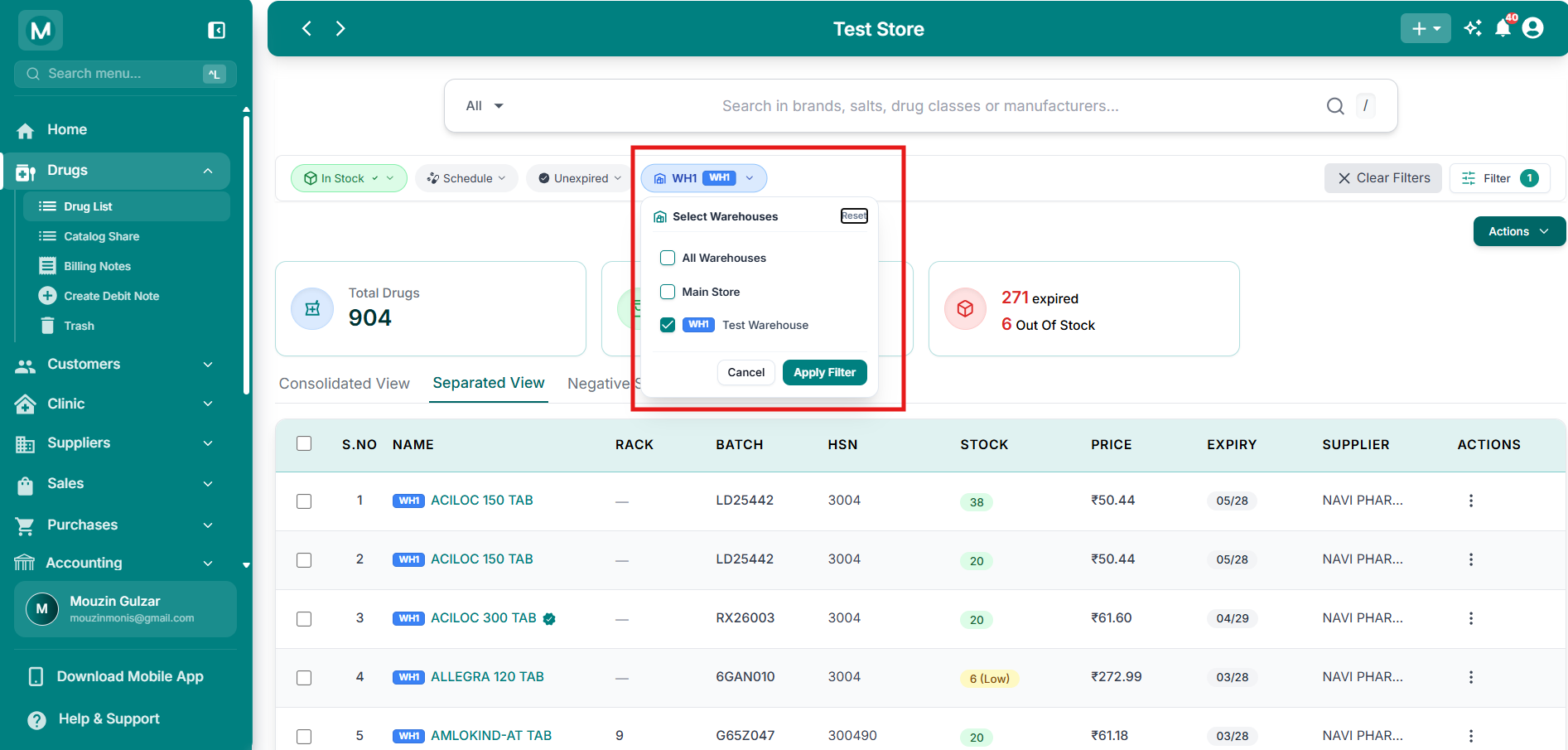
Warehouse stock filter
Switch between Main Store, individual warehouses, and All Warehouses from the Drug List.
How to Filter Warehouse Stock
Open Drug List
Go to Drugs → Drug List.
Select a location
Use the warehouse selector to choose Main Store, an individual warehouse, or All Warehouses.
Review the inventory
The Drug List displays inventory for the selected location.
You can use the existing stock, schedule, expiry, and search filters to narrow the results further.
The warehouse selector controls which location's inventory is displayed. You can still use Consolidated View and Separated View to work with the displayed stock.
For more information about searching, filtering, and inventory views, see Drug List.
Moving Stock Between Locations
MediFlux allows you to transfer medicines between the Main Store and warehouses.
Stock can be moved in both directions:
- From a warehouse to the Main Store
- From the Main Store to a warehouse
Stock movement is performed from Separated View because the transfer uses a specific inventory entry.
Move Stock From a Warehouse to the Main Store
Use this option when you need to bring stock from a warehouse into your Main Store.
Select the warehouse
Go to Drugs → Drug List.
Use the warehouse selector to choose the warehouse containing the medicine you want to move.
Open Separated View
Select Separated View.
Find the stock entry you want to transfer.
Select Move
Open the stock entry's ⋮ Actions menu and select Move.
Enter the quantity
The Move Stock window displays the drug, batch, source warehouse, current stock, and destination.
Enter the Quantity to Move.
You can also add Notes to record the reason for the transfer.
Confirm the transfer
Review the transfer details and select Move Stock.
The specified quantity is moved from the warehouse to the Main Store.
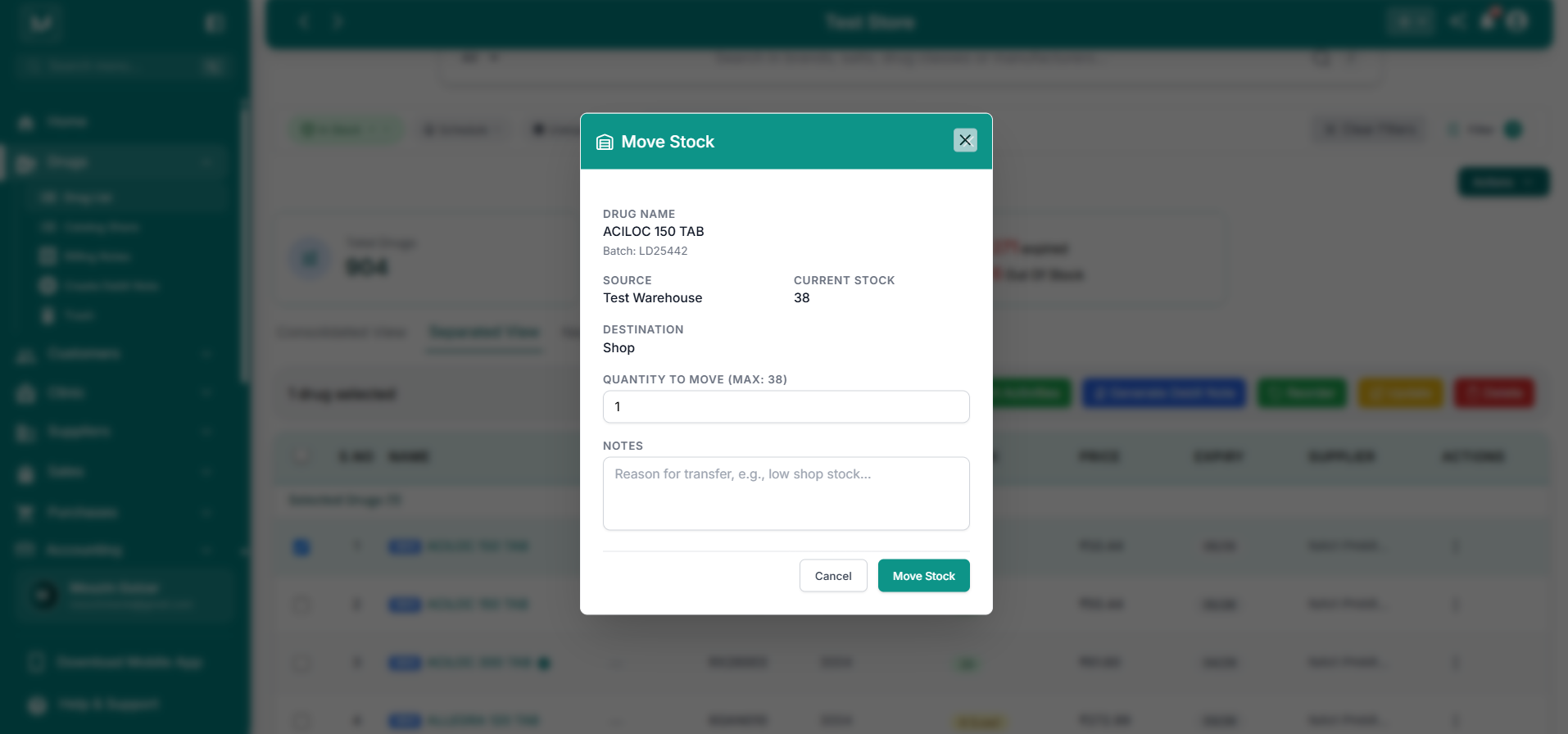
Move stock from warehouse to Main Store
Enter the quantity to transfer from a warehouse to the Main Store.
Move Stock From the Main Store to a Warehouse
Use this option when you want to transfer medicines from the Main Store to a warehouse.
Select Main Store
Go to Drugs → Drug List.
Use the warehouse selector to choose Main Store.
Open Separated View
Select Separated View and find the stock entry you want to move.
Select Move
Open the stock entry's ⋮ Actions menu and select Move.
Choose the destination warehouse
In the Move Stock window, select the Destination Warehouse.
If you have multiple warehouses, choose the warehouse that should receive the stock.
Enter the quantity
Enter the Quantity to Move.
The maximum quantity that can be moved is shown beside the field.
You can also add Notes for the transfer.
Confirm the transfer
Review the information and select Move Stock.
The entered quantity is transferred from the Main Store to the selected warehouse.
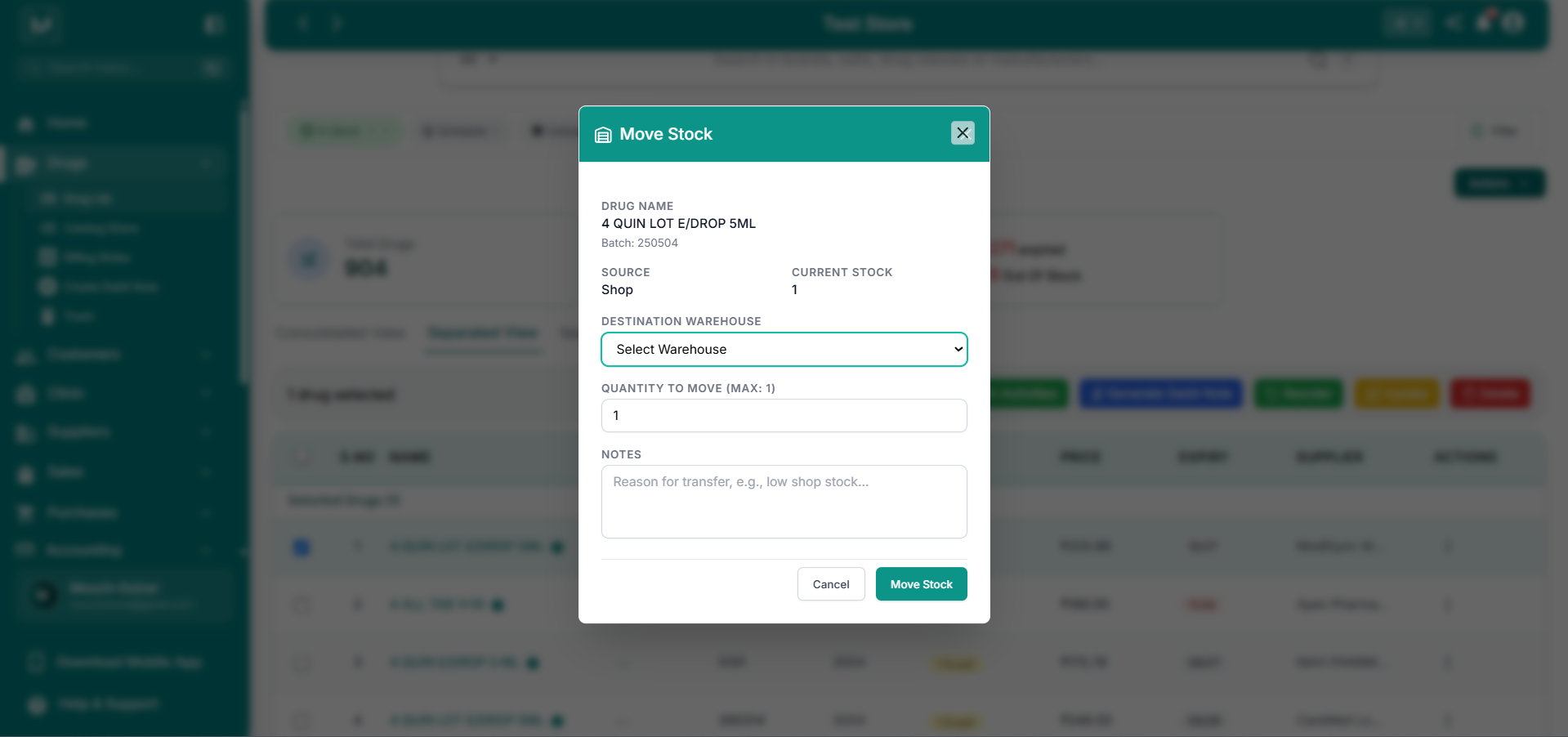
Move stock from Main Store to warehouse
Choose a destination warehouse and quantity when moving stock from the Main Store.
Moving stock transfers existing inventory between locations. It does not create new stock.
The transferred quantity is deducted from the source location and added to the destination location.
Viewing Warehouse Stock in a Drug Profile
When the Warehouse Module is enabled, a Warehouse tab becomes available in the drug details opened from both Consolidated View and Separated View.
This tab helps you identify which warehouses contain a selected medicine and how much stock is available in each warehouse.
You can access the tab whether you are currently viewing the Main Store or an individual warehouse in the Drug List.
How to Check Warehouse Stock
Open a drug
Go to Drugs → Drug List.
Choose Consolidated View or Separated View, then click the medicine name to open its details.
Open the Warehouse tab
Select Warehouse from the available drug details tabs.
The tab displays the warehouses where the selected medicine is stocked.
Review warehouse information
Each warehouse section shows:
- Warehouse Name
- Warehouse Code
- Total Stock
Below these details, a table provides the stock-entry breakdown.
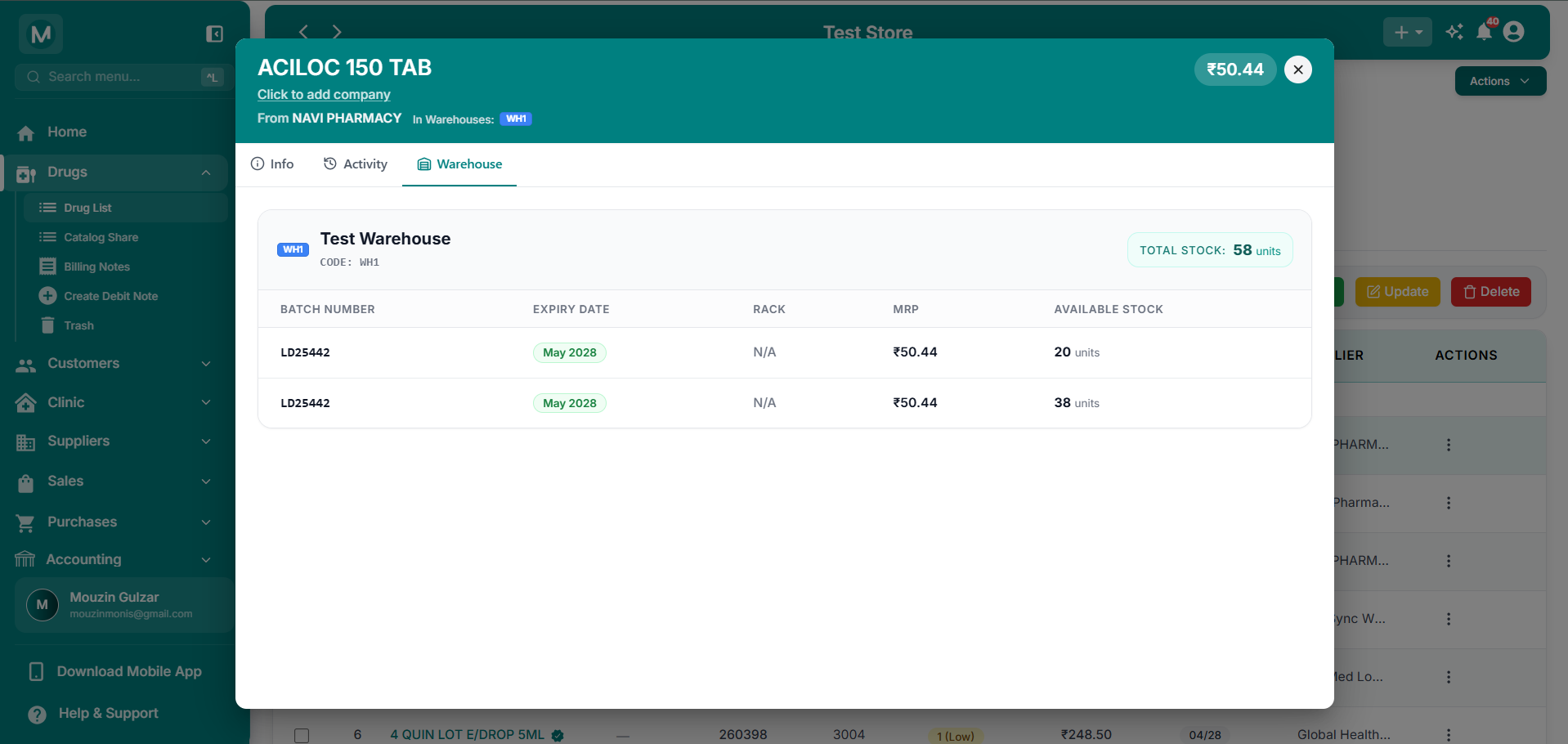
Warehouse tab in drug details
View warehouses containing the selected medicine, with batch-wise stock, expiry, rack, and MRP.
Example: ACILOC 150 TAB
Suppose you open the Warehouse tab for ACILOC 150 TAB.
The tab shows that the medicine is available in Test Warehouse, with warehouse code WH1.
The warehouse contains two stock entries:
Together, these entries account for 58 units in Test Warehouse.
This breakdown helps you identify the individual stock entries contributing to the warehouse's total available quantity.
The Warehouse tab shows warehouses where the selected medicine is available, regardless of whether you opened its details while viewing the Main Store or another warehouse.
If the medicine is stocked in multiple warehouses, the tab displays their respective stock details. The number of warehouses shown depends on where the medicine is actually stocked.