
GST Returns
Learn how to configure GSTR-1, GSTR-2, and GSTR-3B reports, select reporting periods, and choose GST report sections in MediFlux.
The GST Returns & Compliance page helps you prepare and review GST-related reports using your store's transaction data.
You can select a GST return type, choose a reporting period, and generate reports for review. For supported return types, you can also select which sections to include.
To review the transactions used in these reports, see Sales List and Purchase List.
Opening GST Returns & Compliance
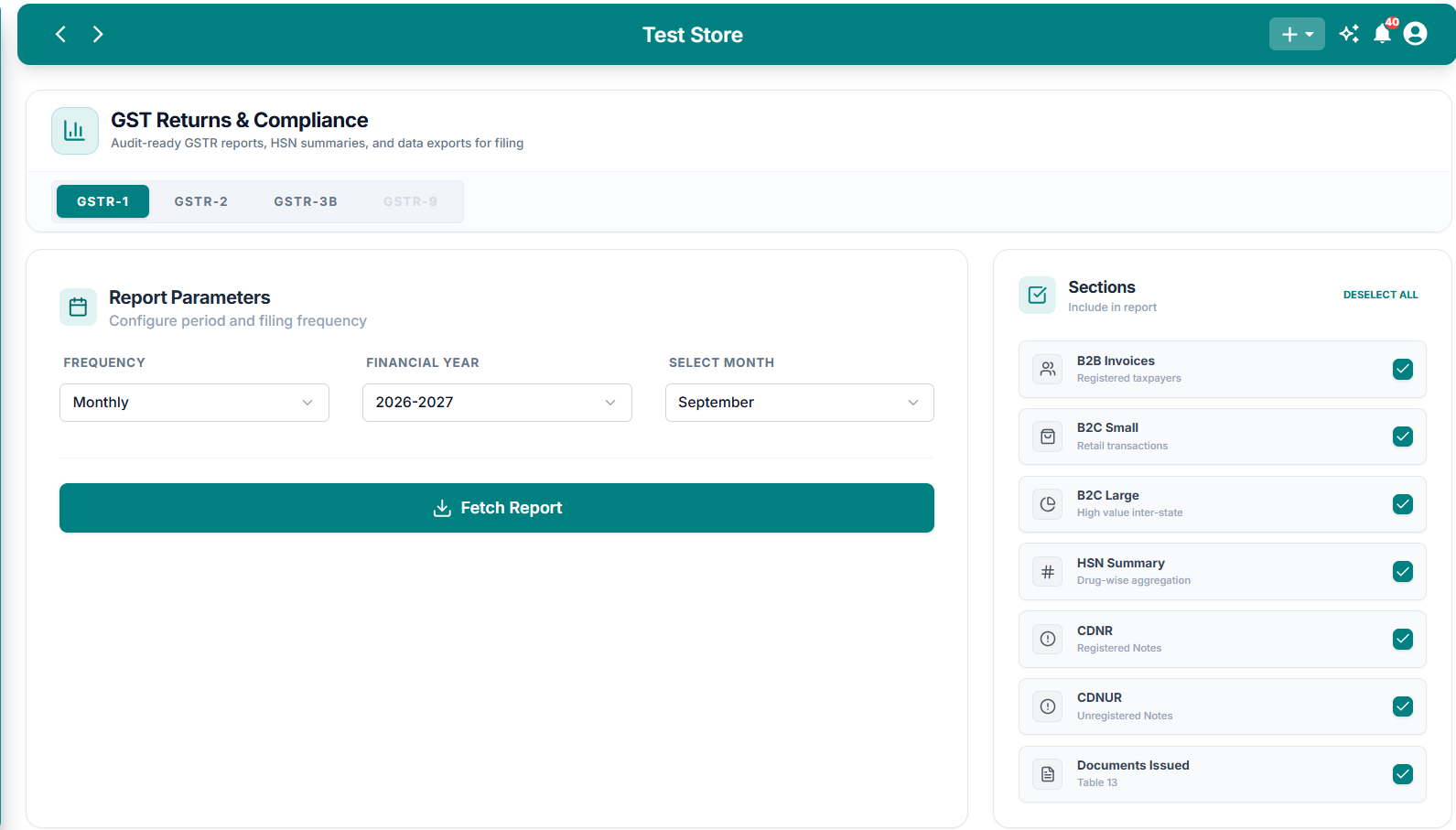
GST Returns & Compliance
The GST Returns & Compliance page displays GST return tabs, reporting parameters, and section-selection controls for applicable returns.
Available GST Return Types
The page displays four return tabs.
GSTR-9 is displayed as a disabled tab and cannot currently be selected from this page.
Configuring Report Parameters
The Report Parameters section allows you to choose the period for which you want to generate the GST report.
The same parameter controls are visible for GSTR-1, GSTR-2, and GSTR-3B.
Frequency
Use the Frequency dropdown to select the reporting frequency.
The available options are:
- Monthly
- Quarterly
- Annually
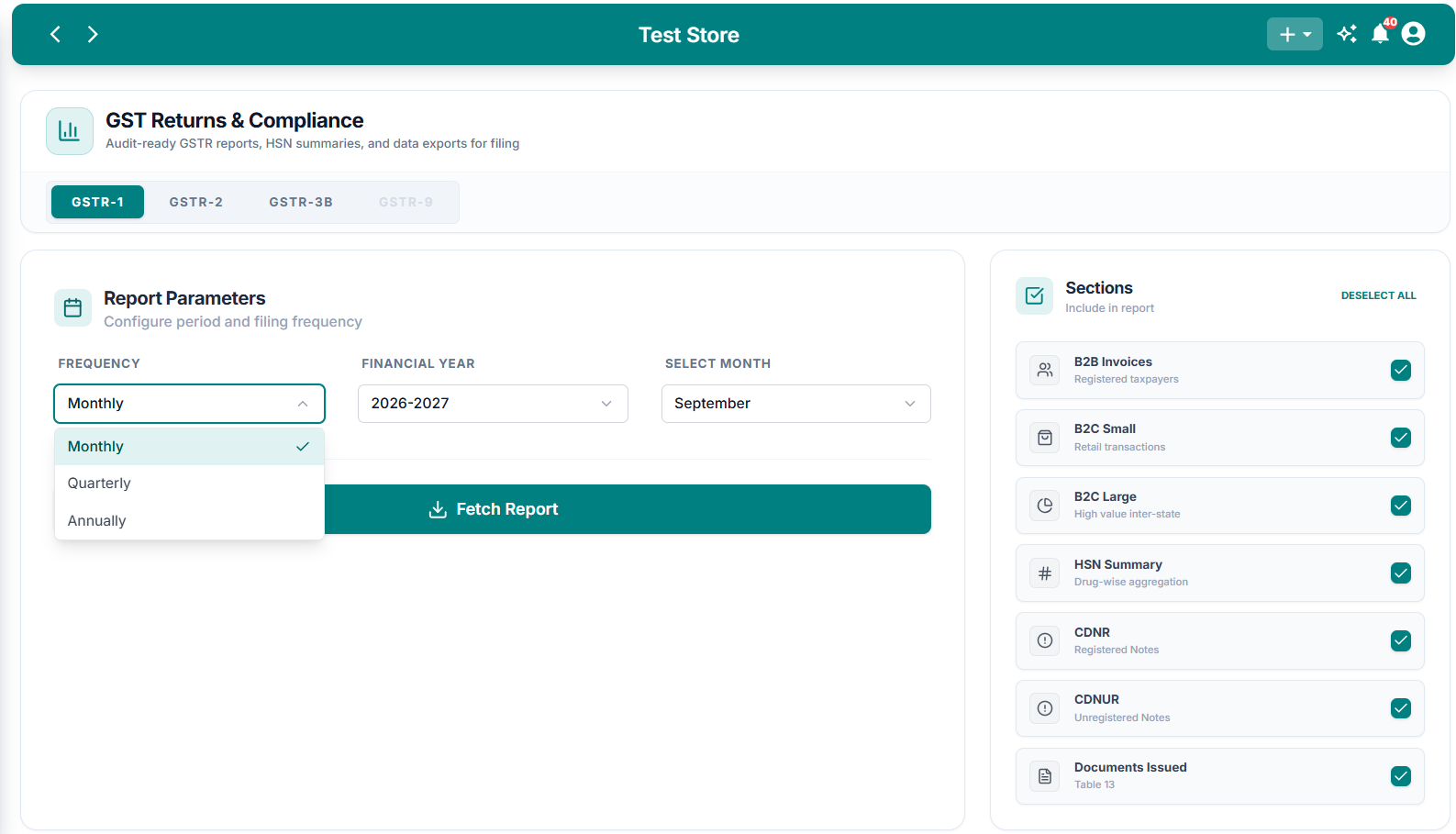
Select Reporting Frequency
Choose Monthly, Quarterly, or Annually from the Frequency dropdown.
Financial Year
Use Financial Year to choose the year for which you want to prepare the report.
For example, the screenshot shows the following available years:
2026-20272025-20262024-20252023-2024
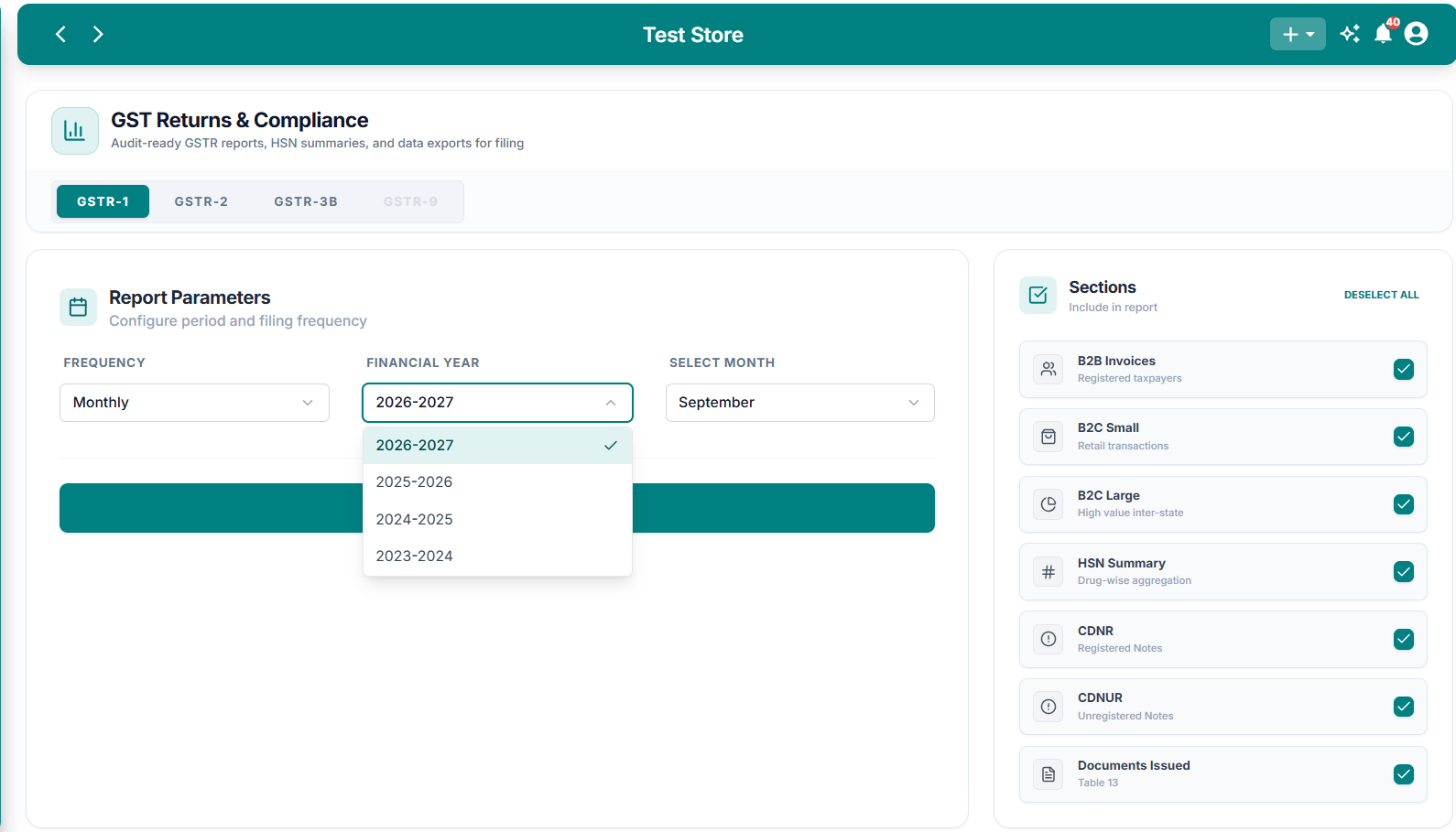
Select Financial Year
Choose the financial year for which the GST report should be generated.
Select Month
When using the monthly reporting view, use Select Month to choose the required month.
For example, you can select October for the financial year 2026-2027.
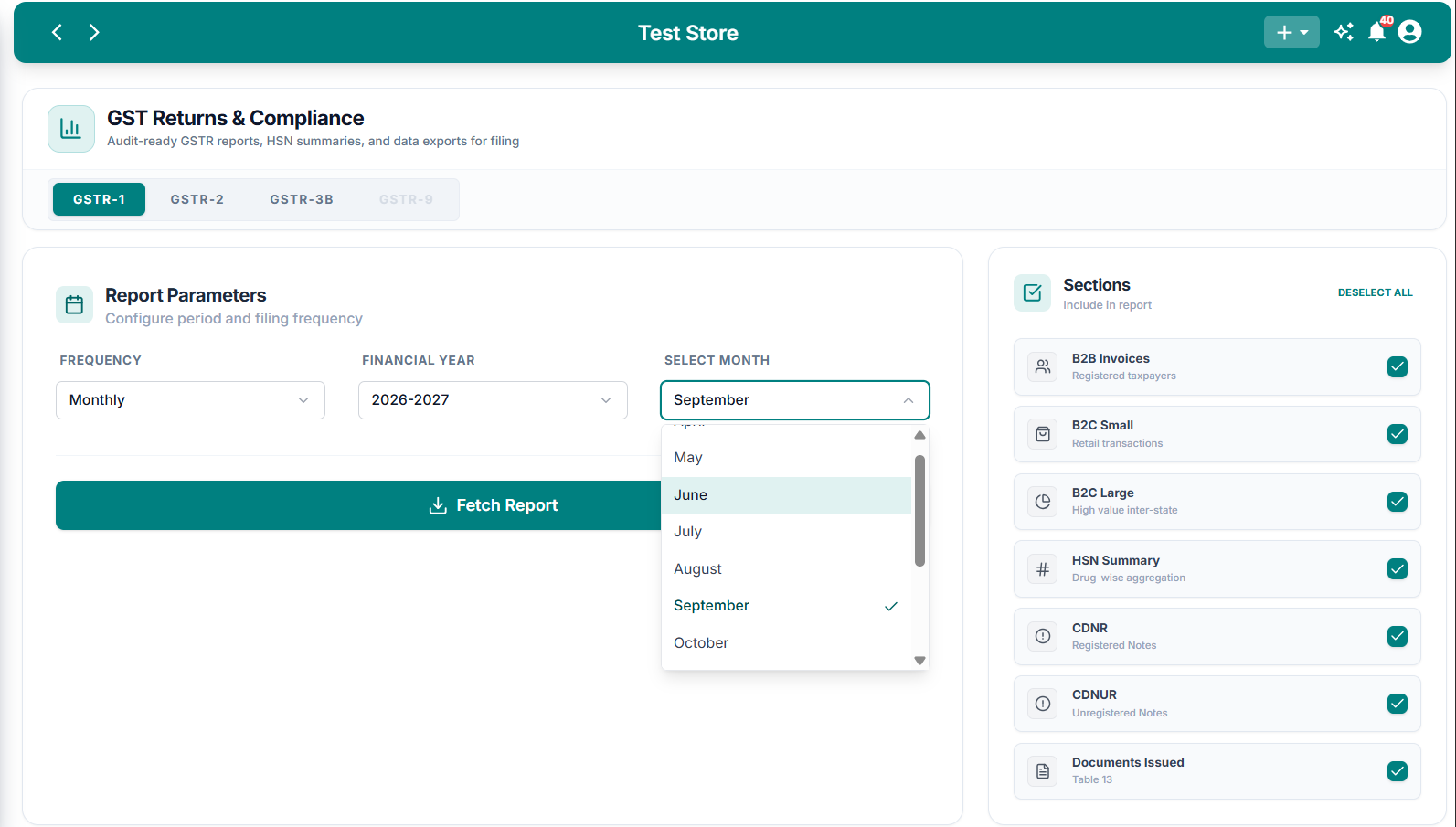
Select Reporting Month
Choose the month for which you want to fetch GST report data.
The screenshots show the month selector for Monthly frequency. The period-selection behavior for Quarterly and Annually has not yet been shown.
Generating GSTR-1
GSTR-1 provides outward-supply information organized into GST reporting sections.
GSTR-1 Sections
The following sections are available in the interface:
Each section has a checkbox that allows you to include or exclude it.
You can also click Deselect All to clear the selected sections.
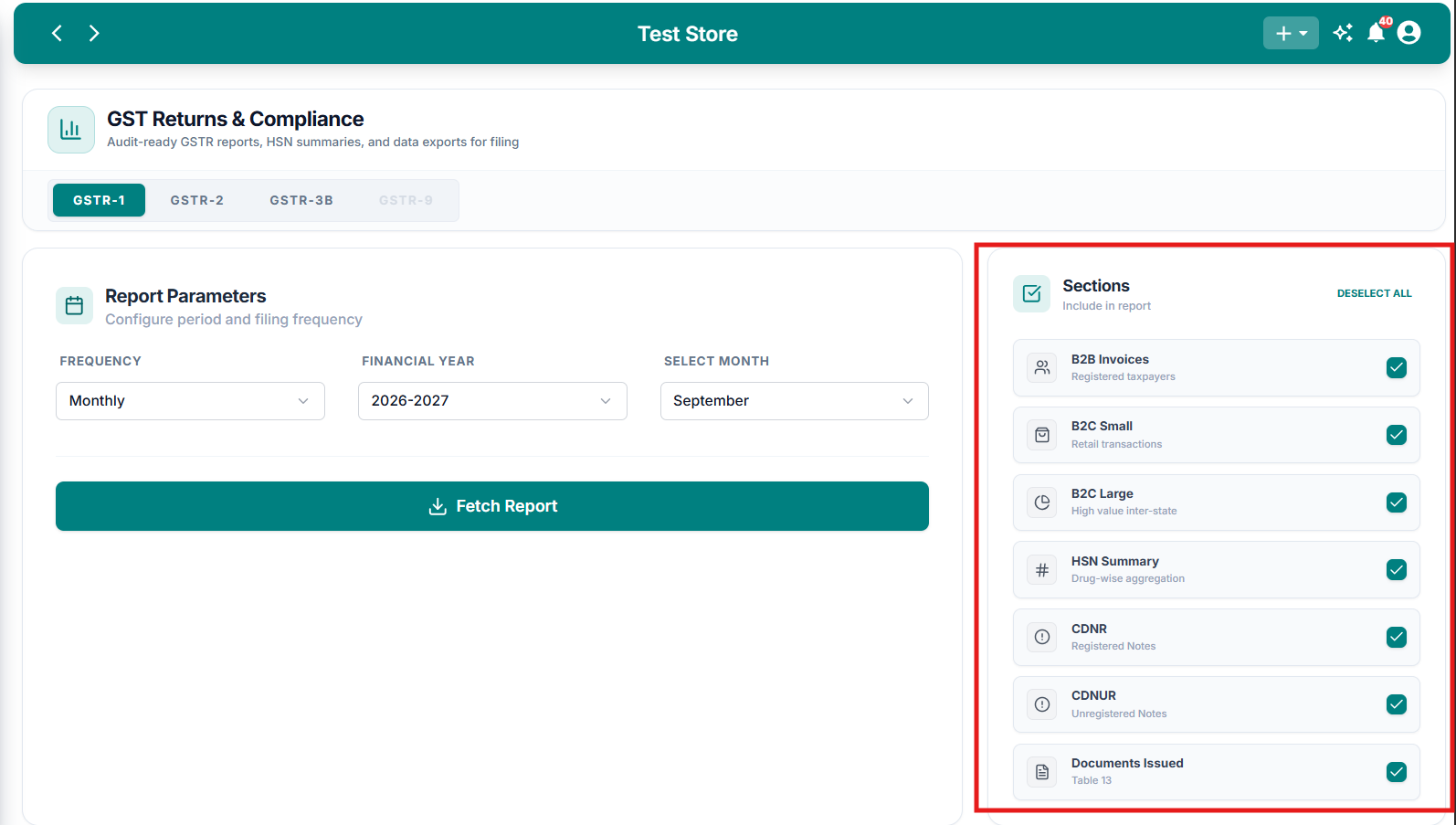
GSTR-1 Report Sections
The GSTR-1 Sections panel includes B2B Invoices, B2C Small, B2C Large, HSN Summary, CDNR, CDNUR, and Documents Issued.
Generating GSTR-2
The GSTR-2 tab provides purchase-related reporting options.
GSTR-2 Sections
The interface displays the following options:
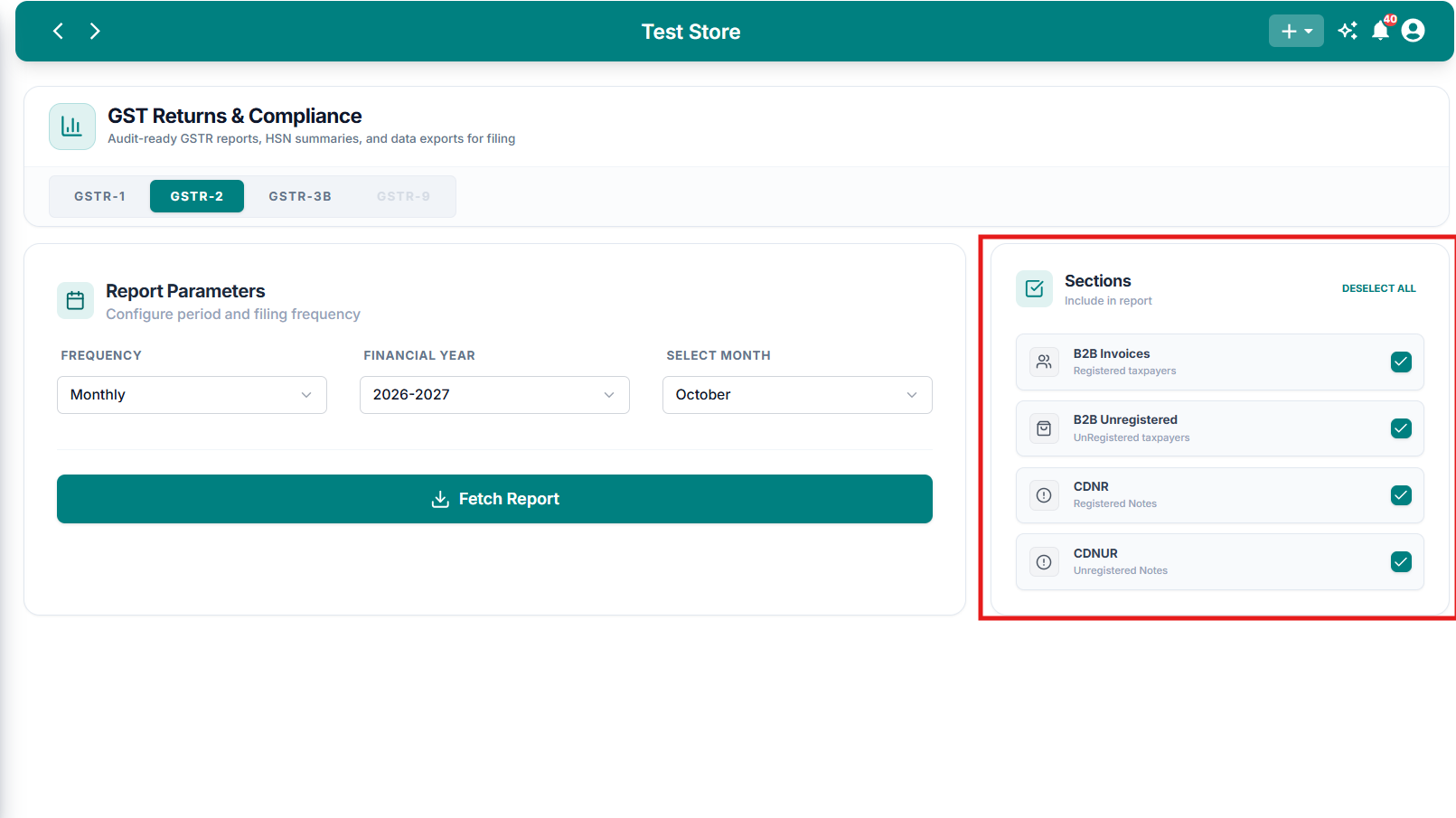
GSTR-2 Report Configuration
The GSTR-2 tab displays reporting parameters and section checkboxes for B2B Invoices, B2B Unregistered, CDNR, and CDNUR.
The Sections panel is different for GSTR-1 and GSTR-2. Select the relevant return tab before choosing sections.
Generating GSTR-3B
The GSTR-3B tab provides a GST summary reporting view.
Unlike GSTR-1 and GSTR-2, the GSTR-3B screen shown here does not display a separate Sections panel.
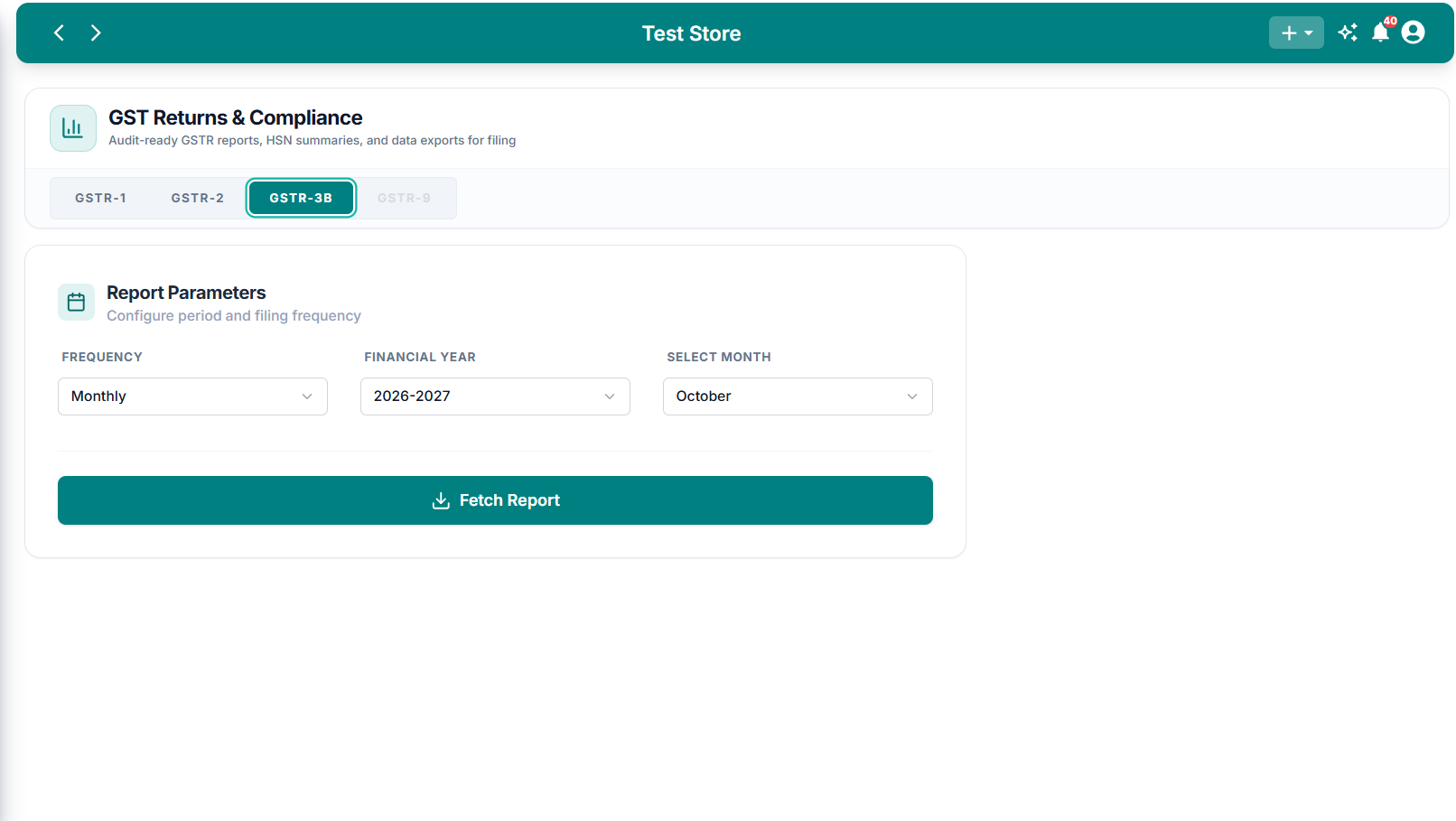
GSTR-3B Report Configuration
The GSTR-3B tab displays reporting frequency, financial year, month selection, and the Fetch Report button.
Selecting and Deselecting Report Sections
For GSTR-1 and GSTR-2, the Sections panel determines which categories are included when fetching the report.
To customize the selection:
- Open the required GST return tab.
- Locate the Sections panel.
- Use the checkboxes to select or deselect individual sections.
- Click Deselect All if you want to clear the current selection.
- Select the required sections and click Fetch Report.
Important Things to Check
Before using GST report data for filing or reconciliation, review the following:
- Confirm that the correct Financial Year and reporting period are selected.
- Check that the required report sections are included.
- Review purchase and sales transactions for missing or incorrect GST details.
- Verify applicable GST rates, HSN codes, and invoice information.
- Reconcile the generated figures with your accounting records and relevant GST portal data.
Generating a GST report in MediFlux does not, by itself, mean that a GST return has been filed with the government. Review and reconcile the information before using it for statutory filing.